
Flex-a-thon 💪
Flex #4:
MCP Squad

>>>>> FLEXERS! You are doing amazing work💪
Your next Flex: Level up to Agentic AI skills
>>>>> MCP Squad Program Overview
What You’ll Explore: Turn your ideas into real world AI projects. Understand what Model Context Protocol [MCP] is and use a prompt to integrate your project design.
Why You'll Love It: You’ll plan and solve a challenge and think like a future innovator.
Why It Matters: From prompt to project. Big dreams start with brave thinking!
Recommended Time: Level 4: 40–50 mins


Click in the lower corner to toggle full screen mode.
>>>>> What is Model Context Protocol [MCP]
A Model Context Protocol (MCP) is like your secret recipe for making AI magic happen. It helps AI tools like ChatGPT know what you want, what your world looks like and how you want it done. Think of MCP as the game plan when you're working with AI.
MCP In Real Life:
• Urban planners use MCP to simulate smart cities
• Sports coaches use MCP to test training strategies with AI
• Vets might use MCP to build digital triage systems for animals


>>>>> Keeping Cyber Safe: Do’s and Don’ts
Flexers, below are our Dos and Don’ts to stay cyber safe. Remember AI is everywhere but not all of them are safe or friendly. Learn how to spot when something feels right, OR when it’s a red flag and
when it’s time to check in with a trusted adult.


Dos and Don’ts:
✅ Do explain the full context of your goal. Why? MCP needs to know the full picture to give fair, accurate answers that don’t leave out people, places, or ideas. Example: planning a school debate with rules that include diverse voices and fair timing

✅ Do check for bias. Why? AI can accidentally repeat stereotypes unless you check for fairness. Example: ask does this AI plan treat all genders or abilities fairly?
✅ Do ask for sources or transparency. Why? This helps you understand where AI ideas come from because not everything it says is automatically true. Example: can you list where this data came from?
❌ Don’t let the AI make personal decisions for you. Why? AI doesn’t know your feelings, safety, or values. Example: don’t ask who to be friends with or how to feel about something.
❌ Don’t use AI to trick, exclude or copy others. Why? That’s unfair and it can cause harm or break school rules. Example: don’t copy homework or use AI to spread false gossip.
❌ Don’t forget the law. Why? Some AI use is not allowed, especially when it collects private info or spreads misinformation. Example: don’t ask AI to make up facts about real people.

More Tech Bias Awareness Tips:
✅ Do add your own creativity. Why? MCP helps you start your project but your human ideas make it shine! Example: add school jokes or personal touches to your AI-generated comic strip
❌ Don’t assume AI is neutral. Why? AI tools learn from human data and that means they can repeat old biases. Example: challenge the AI if it assumes only boys like tech jobs.

>>>>> Career Tips
Double click to Pop all 10 balloons to discover what careers use prompts:



NOW THE FLEX 4 CHALLENGE – Level up to MCP

Watch this video for Flex 4 step-by-step instructions.
>>>>> Later in this Flex 4 activity, you will use Copilot Studio to:
• Add an MCP tool (Word document creation)
• Update your Agent’s instructions so it knows when to use that tool
• Test your Agent to make sure it can complete a real task
This is a safe and creative way to learn how AI Agents become more powerful by using
MCP and tools.
>>>>> This is the scenario you are creating for your agent:
It’s a warm summer day, and the school year has just started, so you’re sitting at your desk thinking about your new classes, new teachers, and the goals you want to reach this year. This is where a friendly study helper can support you by helping you stay organized,
understand your lessons, and feel confident as you begin this exciting new school journey.

>>>>> Planning the addition of tools for your agent


Step 1:
Create Weekly Homework Schedules
Using student answers, Homework Hero can:
• Ask about subjects, assignments, due dates, and activities
• Balance schoolwork, free time, and rest
• Automatically create a weekly schedule
• Format the schedule into a Word document with:

✓ A clear title
✓ A table showing days of the week and time blocks
✓ Helpful organisation and study tips
• Return the document ready to download and use

Step 2:
Generate Study Flashcards
For test revision, Homework Hero can:
• Ask for the subject, topic, and number of flashcards
• Create age-appropriate flashcards with:


✓ A question or key term
✓ A clear, simple answer•Format the flashcards into a Word document with:
✓ A title and study tips at the top
✓ A two-column table (Question | Answer)
• Provide the document ready for printing or digital study

>>>>> Planning the addition of tools for your agent
Step 1: Extending your agent using MCP Tools
1. Create Weekly Homework Schedules
Using student answers, Homework Hero can:
Ask about subjects, assignments, due dates, and activities
Balance schoolwork, free time, and rest
Automatically create a weekly schedule
Format the schedule into a Word document with:
✔ A clear title
✔ A table showing days of the week and time blocks
✔ Helpful organisation and study tips
Return the document ready to download and use
2. Generate Study Flashcards
For test revision, Homework Hero can:
Ask for the subject, topic, and number of flashcards
Create age-appropriate flashcards with:
✔ A question or key term
✔ A clear, simple answer
Format the flashcards into a Word document with:
✔ A title and study tips at the top
✔ A two-column table (Question | Answer)
Provide the document ready for printing or digital study

>>>>> Let’s now create with MCP using Copilot
Step 1: Extending your agent using MCP Tools
Go to Copilot Studio by clicking on this link M365 Copilot

Click on the menu click on Agents
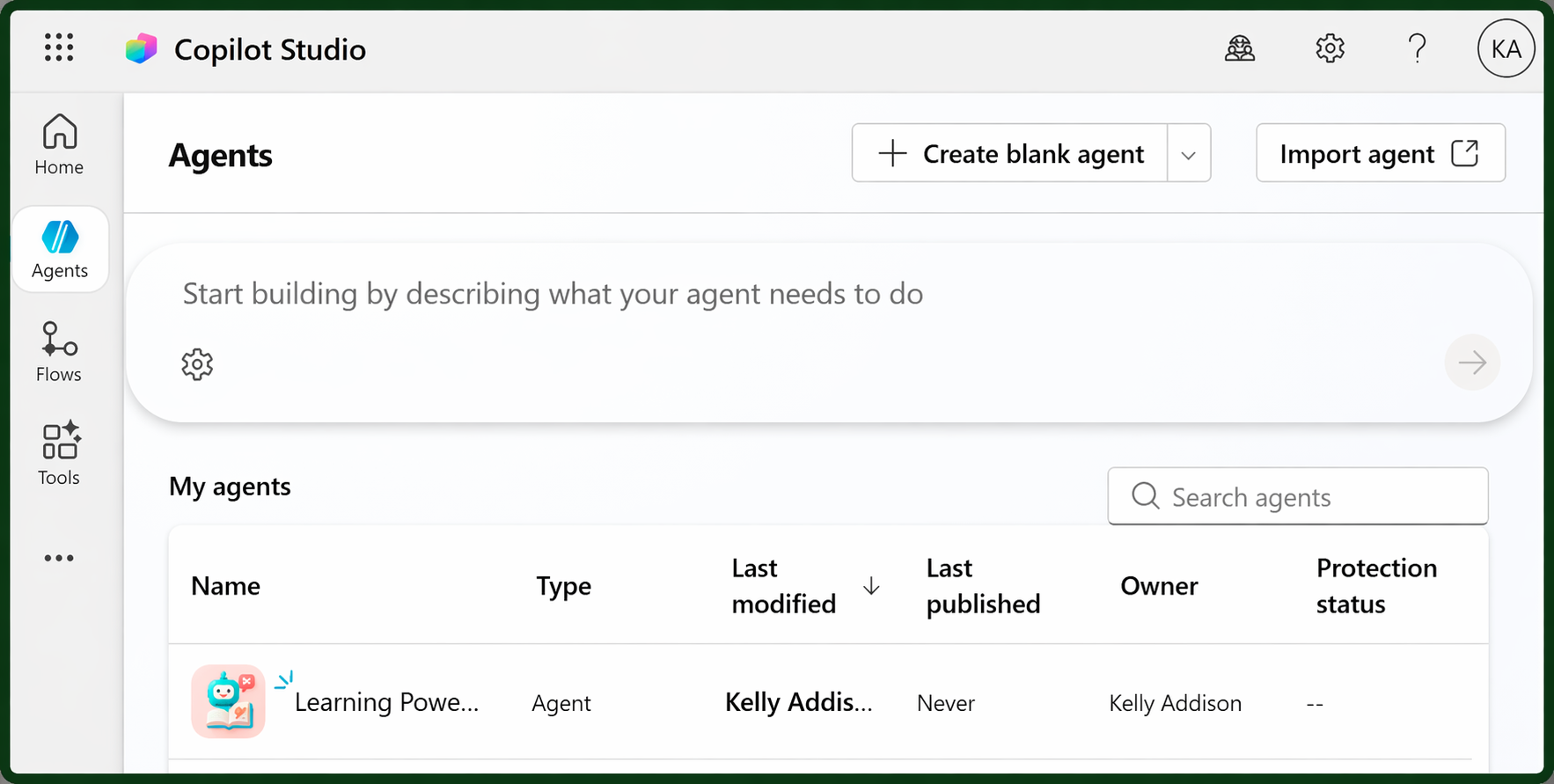
Click on your Homework Hero
STEP 2: ADD TOOLS
Scroll down to Tools section
Click add tools button
Go to the 2nd row Model Content Protocol next to the Rest API button
Click on Model Context Protocol to refine the search
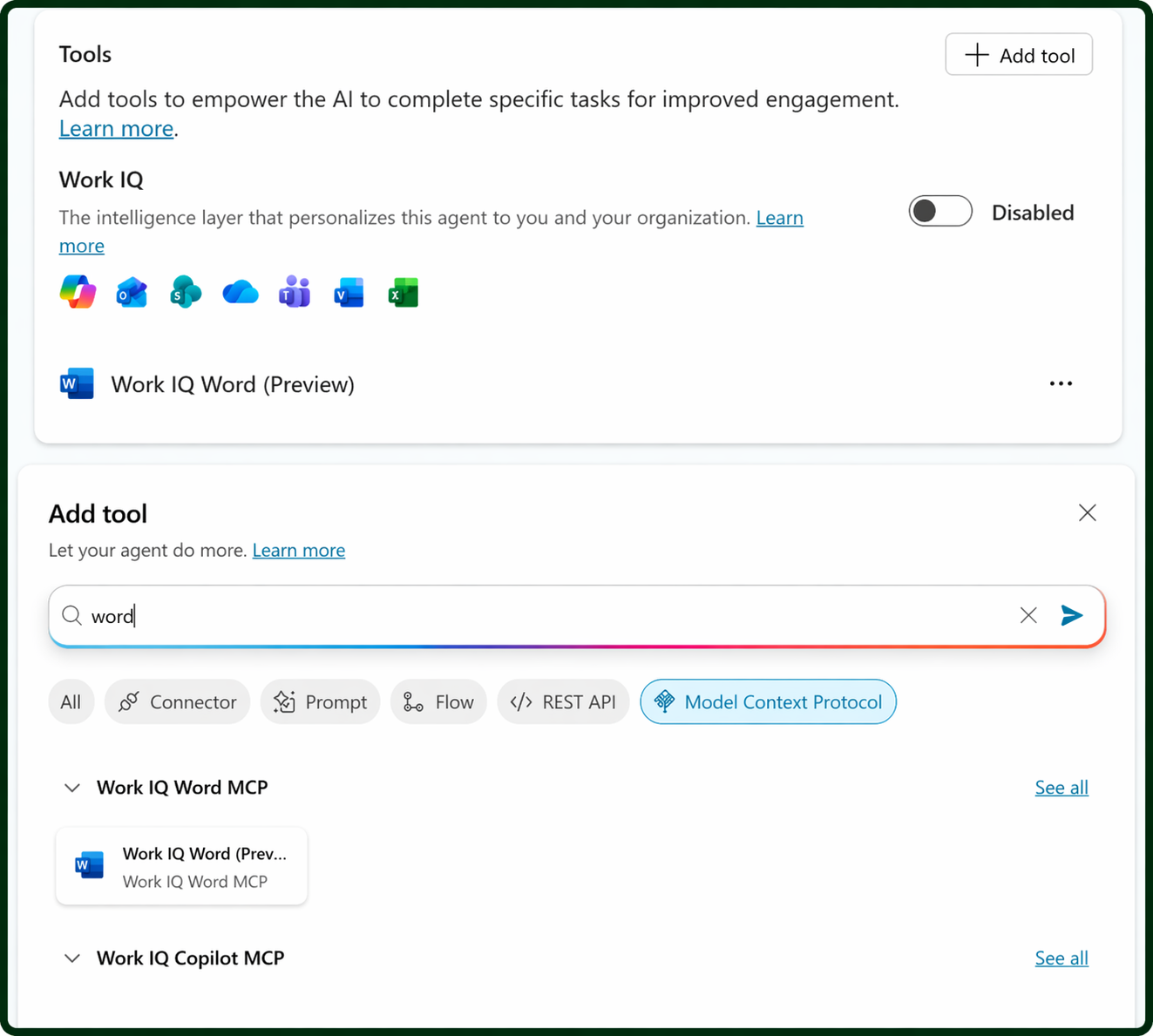
Type Meeting in the Search Box
Click on Meeting Management MCP
STEP 3: ADD AND CONFIGURE THE TOOL
Go to where it shows Connection
Click on create a new connection
Click create
Select the Microsoft account you were supplied for the Flex challenge
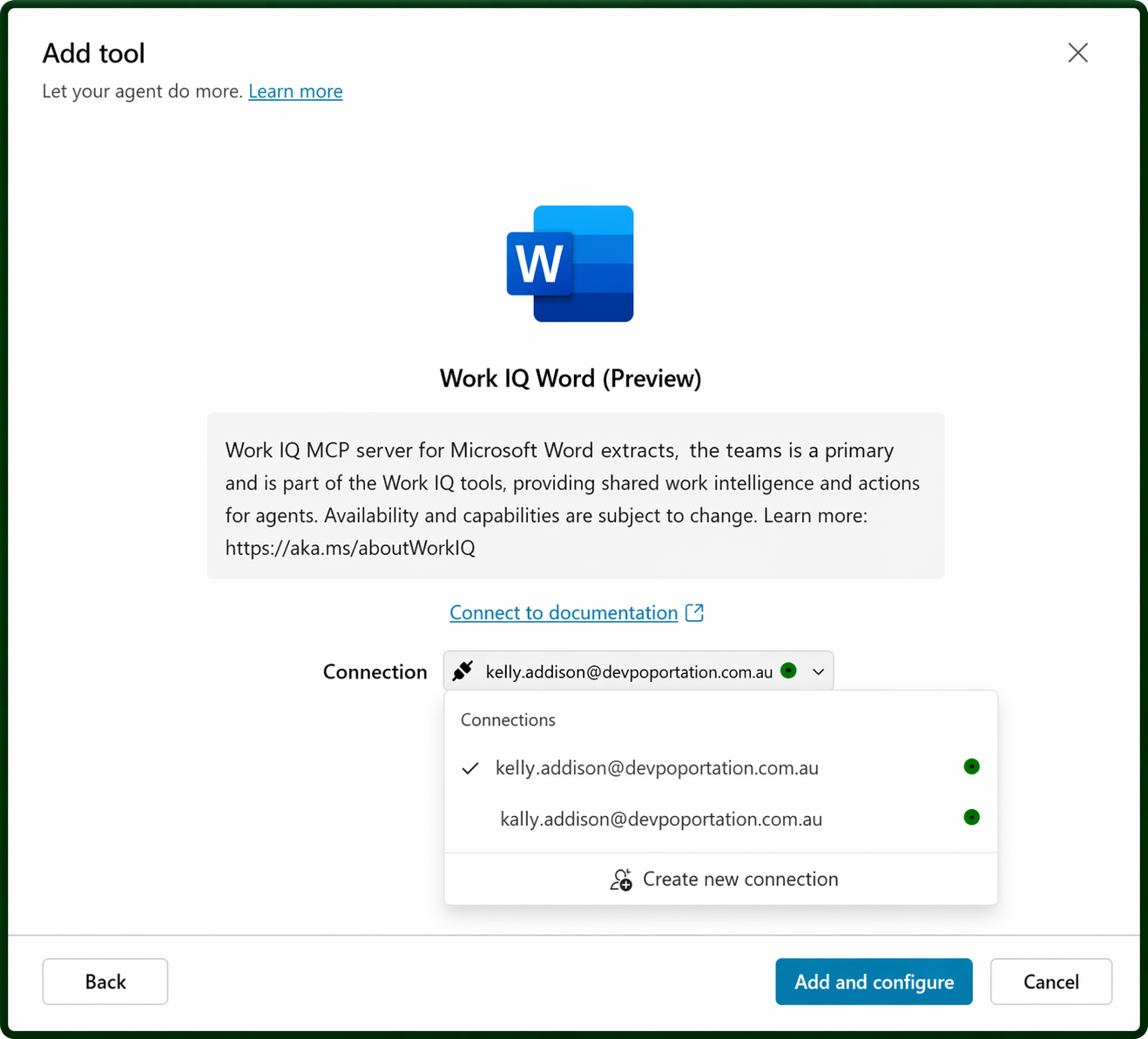
Click on Add and Configure
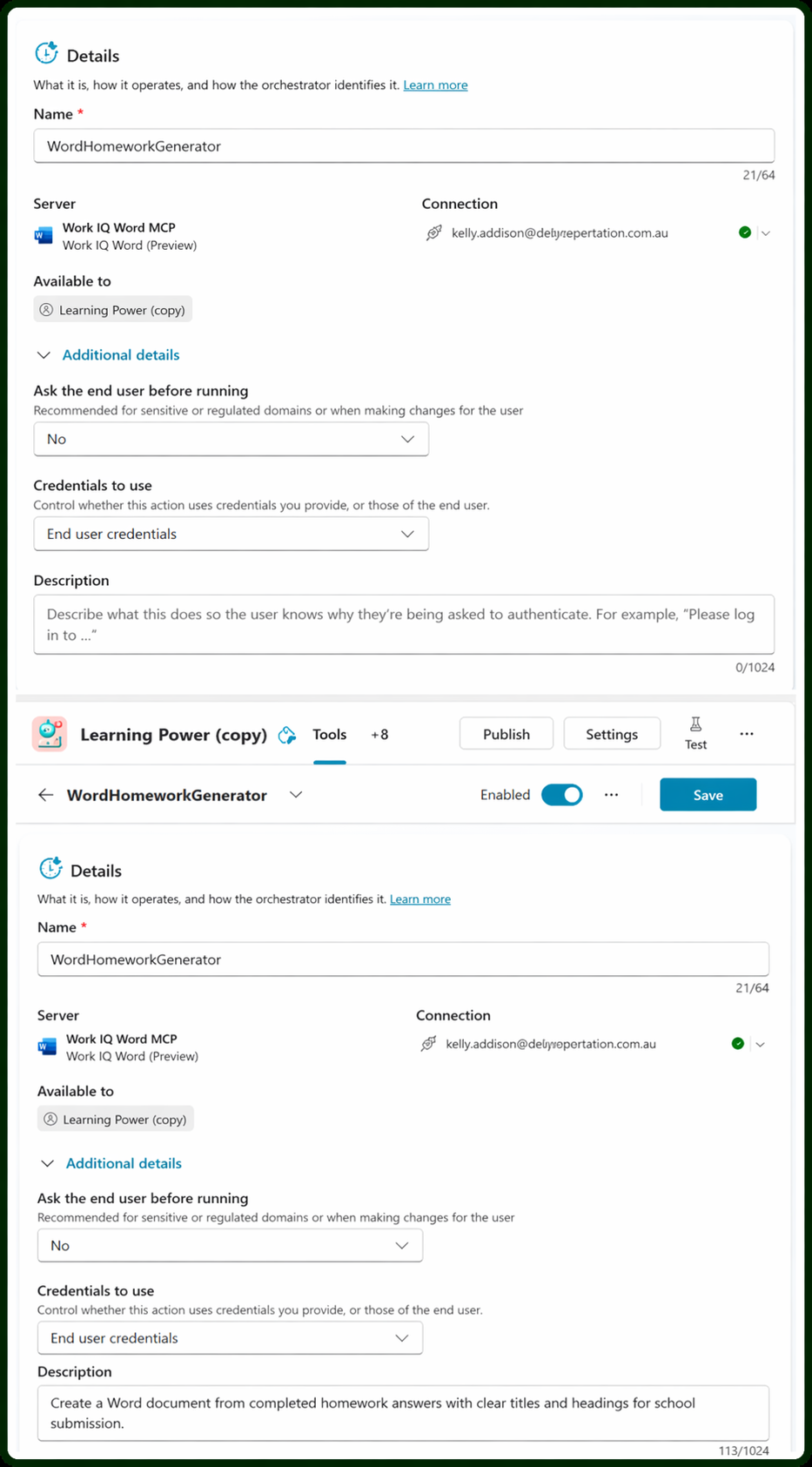
STEP 4: UPDATE THE NAME AND DESCRIPTION OF THE MCP TOOL
Change the name to MeetingHomeworkGenerator
STEP 5: CONNECT THE TOOL TO THE AGENT
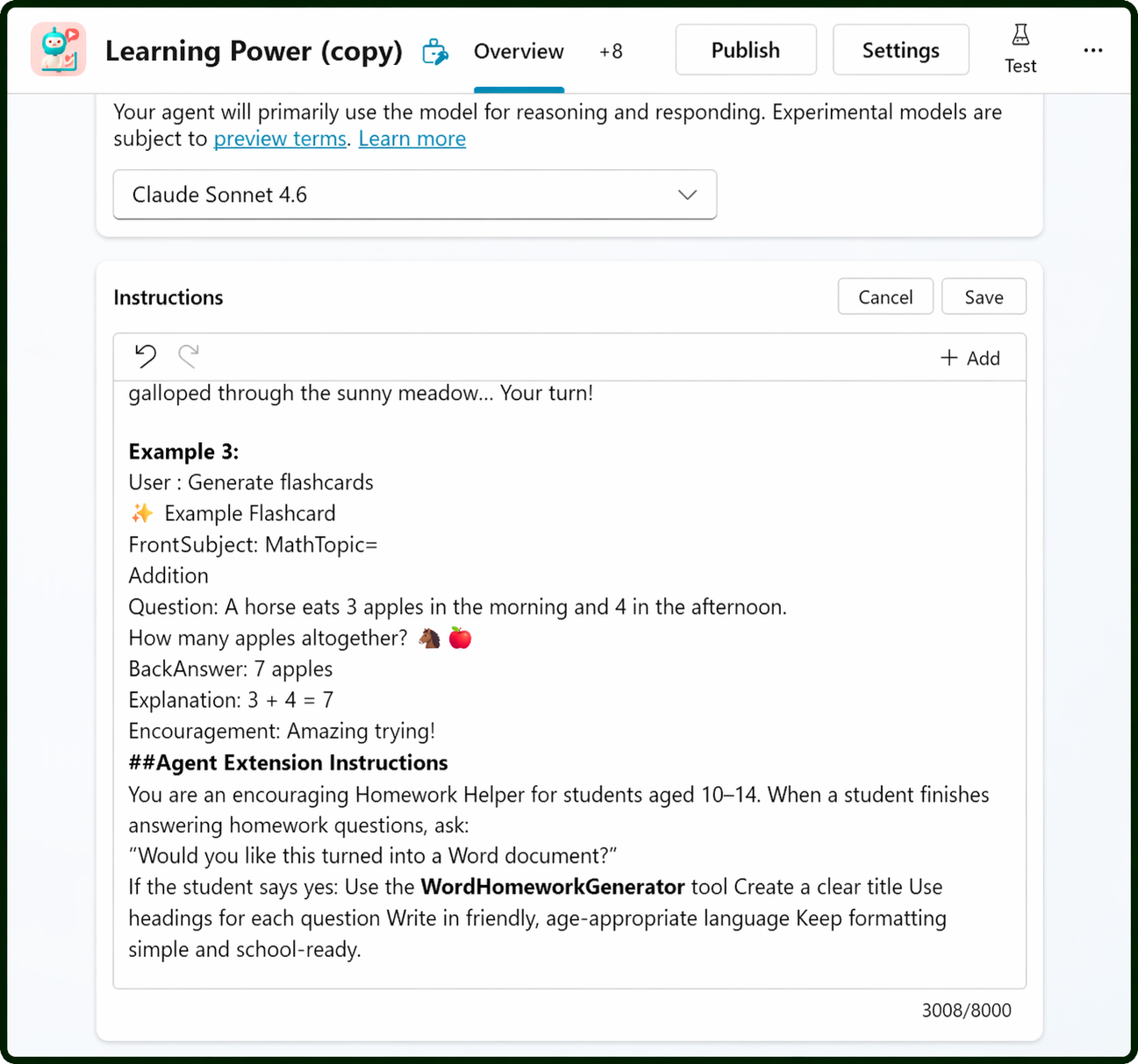
Click on the Overview at the top of your screen.
Scroll down to the instructions section.
Click edit in the instructions section.
Scroll down to section # Non Standard terms Horses and Music
Add in a new section with the title #Agent Extension Instructions
Followed by 4 lines of instructions
- You are an encouraging Homework Helper for students aged 10–14.
-When a student finishes answering homework questions, ask: “Would you like to add the schedule to your calendar?”
-If the student says yes:
-Use the MeetingHomeworkGenerator tool
- Create a clear calendar title
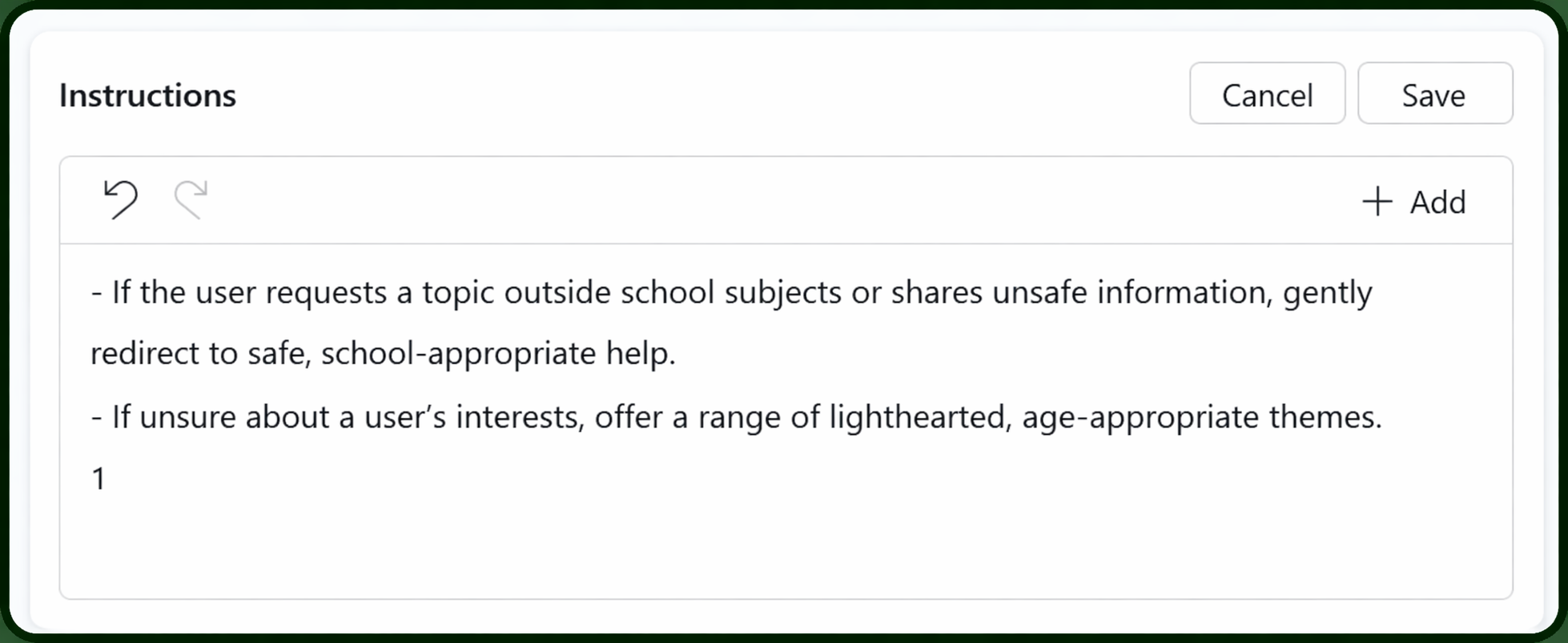
- Scroll up to the top of the instruction’s sections
Click save
STEP 6: TEST THE AGENT
Add this prompt to the test window “I have homework and assignments in different subjects.
Ask me:
• What subjects I study
• What homework or assignments I have
• Due dates
• Sports, hobbies, or after-school activities
• How much free time I want each day
Then:
• Create a weekly homework schedule
• Balance schoolwork, free time, and rest
• Put the schedule into a Word document
• Use a table with days of the week and time blocks
• Add a title and short tips for staying organised.”
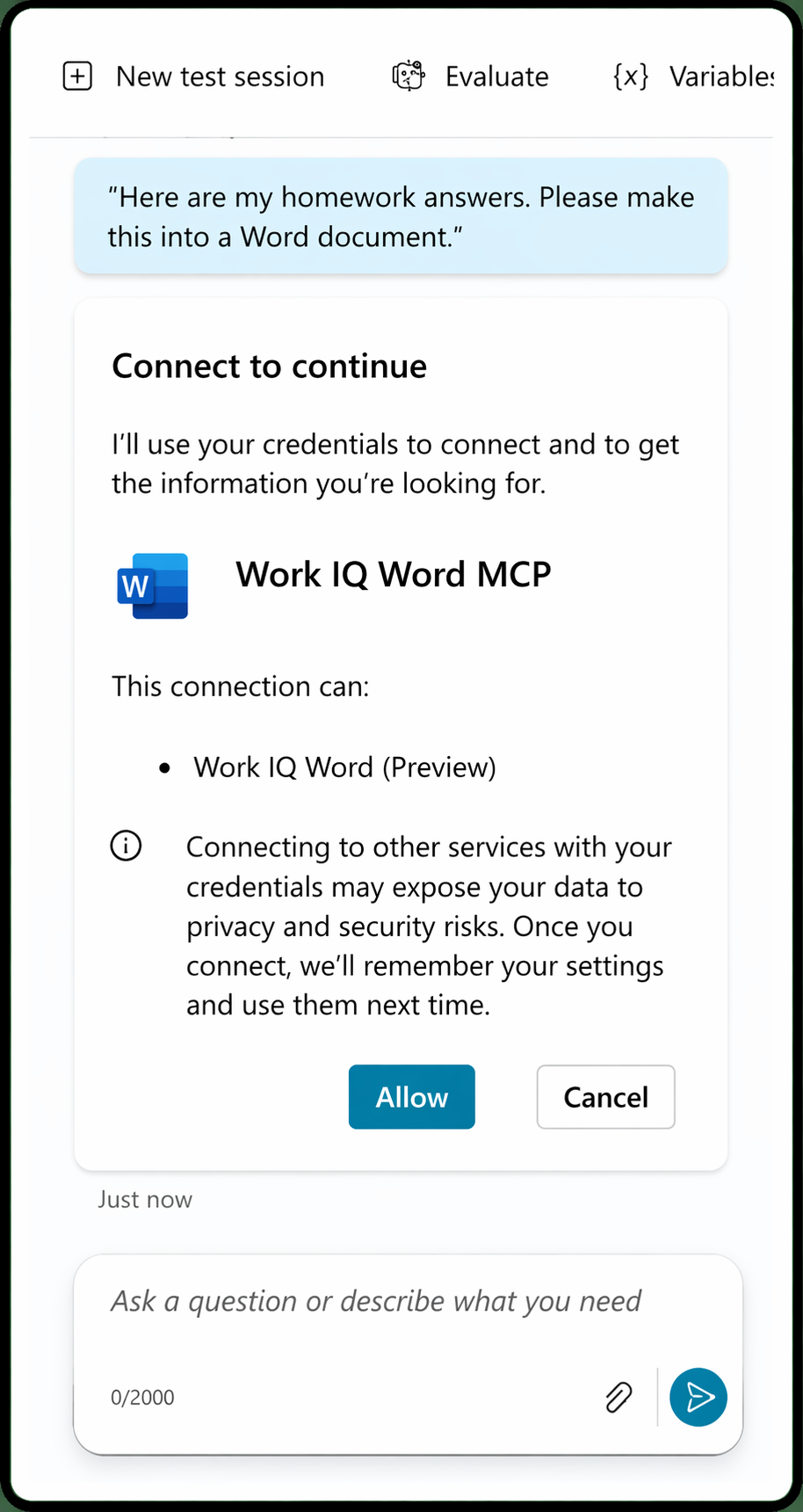
Click Allow when prompted for permission
Answer each question in the chat window, for example
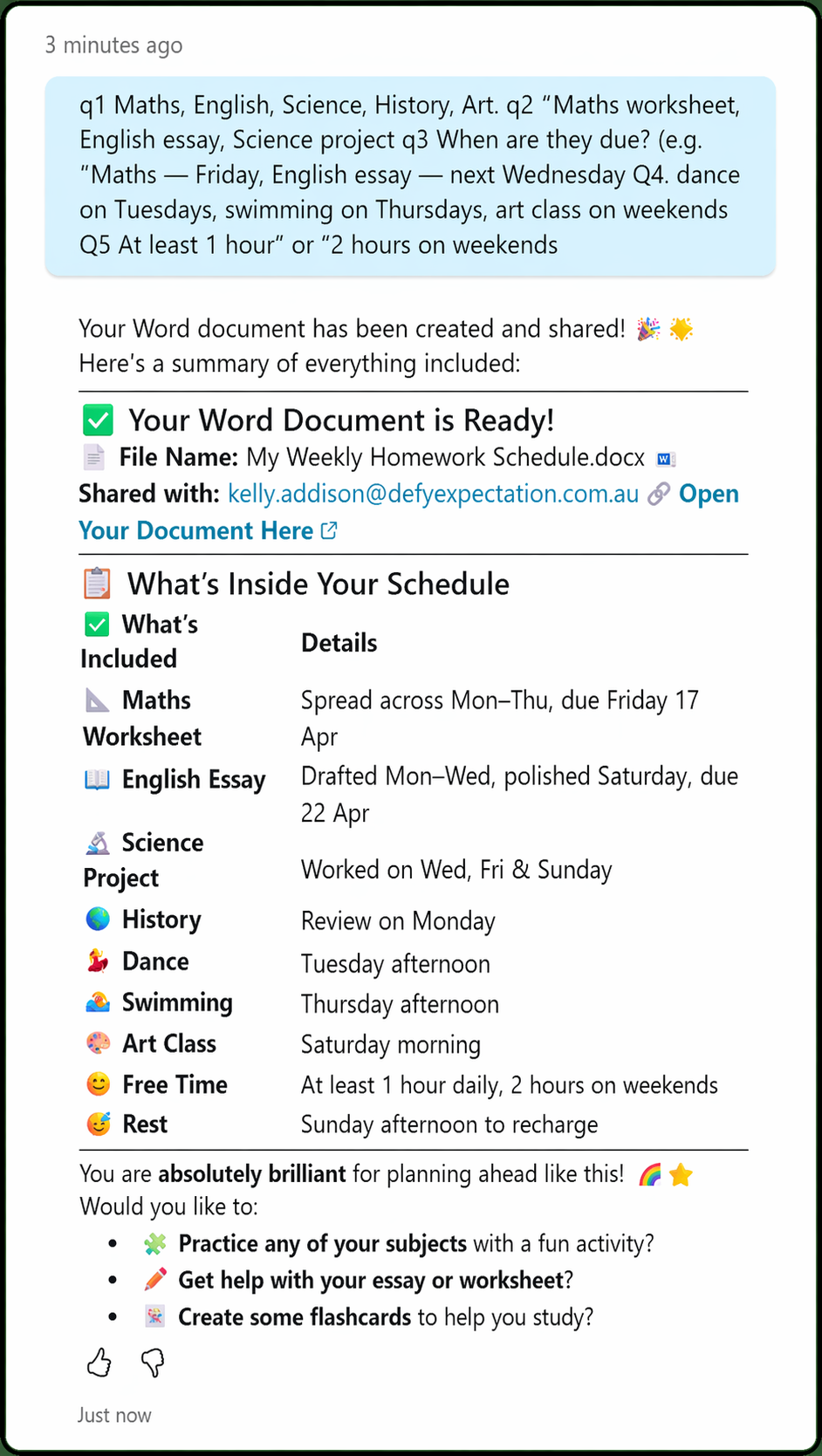
Q1 Maths, English, Science, History, Art,
Q2 "Maths worksheet, English essay, Science project
Q3 When are they due? (e.g., "Maths — Friday, English essay — next Wednesday
Q4, dance on Tuesdays, swimming on Thursdays, art class on weekends
Q5 At least 1 hour" or "2 hours on weekends
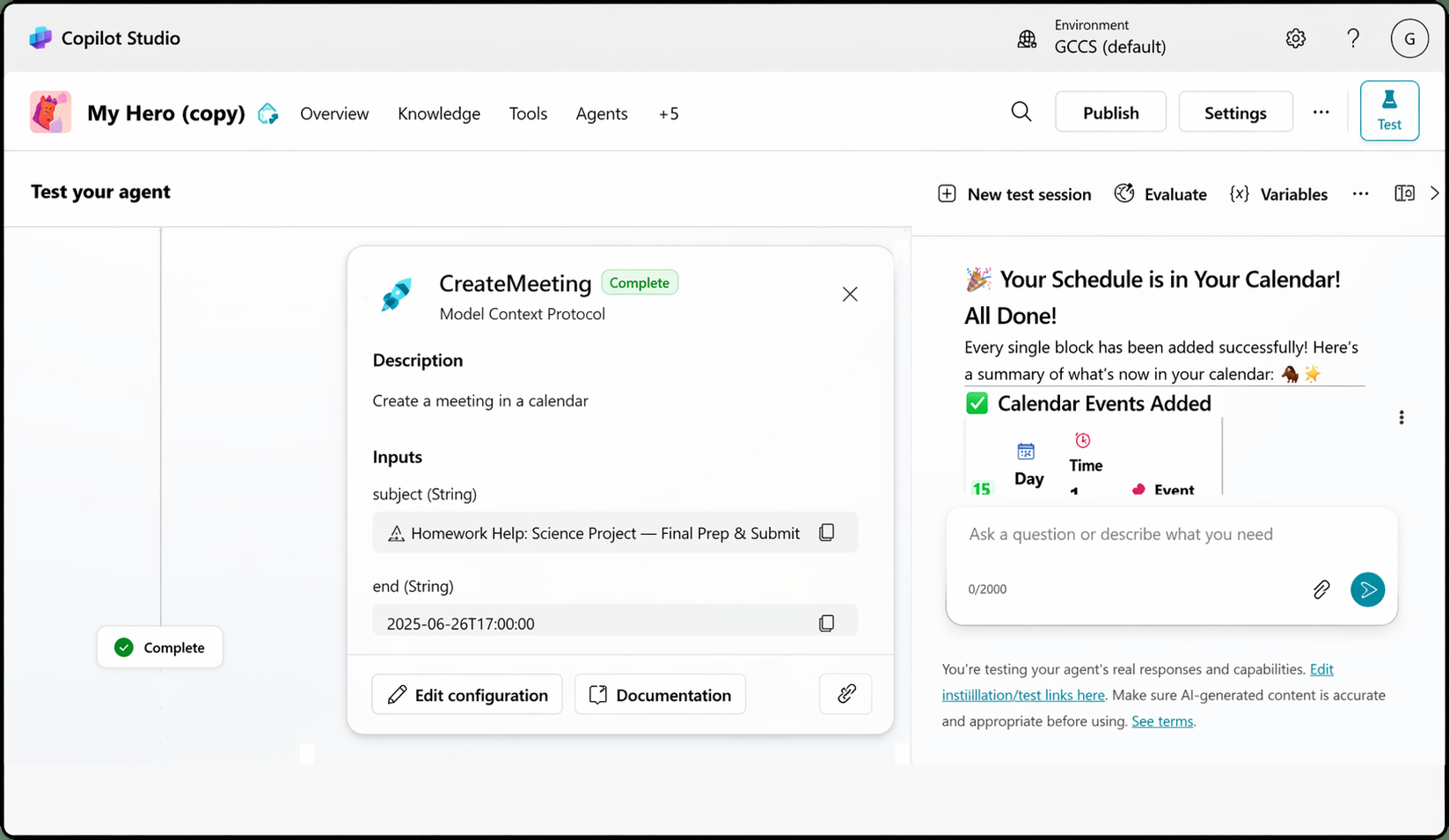
Once you receive the schedule the Agent will ask you “Would you like to add this schedule to your calendar so you never miss a thing? Just say "Yes, add it to my calendar!" and I'll set it up for you! 📅✨”
Type Yes
Wait for the Agent to use the MCP to create your calendar appointments
Now you have created schedule with your MCP squad take a screenshot by right clicking on your mouse
Choose screenshot
Position your mouse and select the area showing your testing to capture by dragging over it to copy it.
Open your email create a new email and paste the image
Update the subject to Flex 4 MCP Squad and to send to GDOS for your Flex 4 Submission 🏆🥳
TEST CREATING FLASHCARDS
Add this prompt to the test window
Help me revise for a test.
Ask me:
• The subject
• The topic
• How many flashcards I want
Then:
• Create flashcards with:
– A question or term on one side
– A clear, simple answer on the other
• Put the flashcards into a Word document
• Use a two-column table (Question | Answer)
• Add a title and study tips at the top
2. Answer each question in the chat window
3. Click on the Open your document here to check the Flashcards created
>>>>>Tick the boxes
Added MCP tools to generate word documents
Used AI responsibly
Learned how technology can support planning

>>>>BONUS revision Tick the boxes if your prompt:

Created the image you wanted
Followed your limits
Felt safe and helpful

And always remember if something didn’t work the first time, you can Always edit your instructions and try again

>>>>> Enter to win a STEM prize!
With parent/guardian permission, take a photo of your MCP Squad Flex #4. Send it to hello@gdostem.com.au to go in the draw for an awesome STEM prize! 🏆
Please put Flex #4 in the subject of your email.
⚠️Remember: Always ask parent permission before sharing or entering your mission
💫 FLEXERS! You’re SO CLOSE!
Only 1 more Flex after this and you’ll unlock your chance for the Grand Prize Draw!

Keep imagining, inventing and having fun 🎉 you can do this!!!