

Flex-a-thon 💪
Flex #5:
Pitch Perfect

>>>>> FLEXERS! You’ve made it!!!
Congratulations, FLEXERS… you DID IT! You’ve persevered through all five Flexes. What an amazing achievement! You’ve shown that it really IS possible when you use your imagination, creativity and agency. Now let’s finish strong with one last Flex… and this one might just be your favourite yet!


This is your final Flex💪
>>>>> What is a pitch?
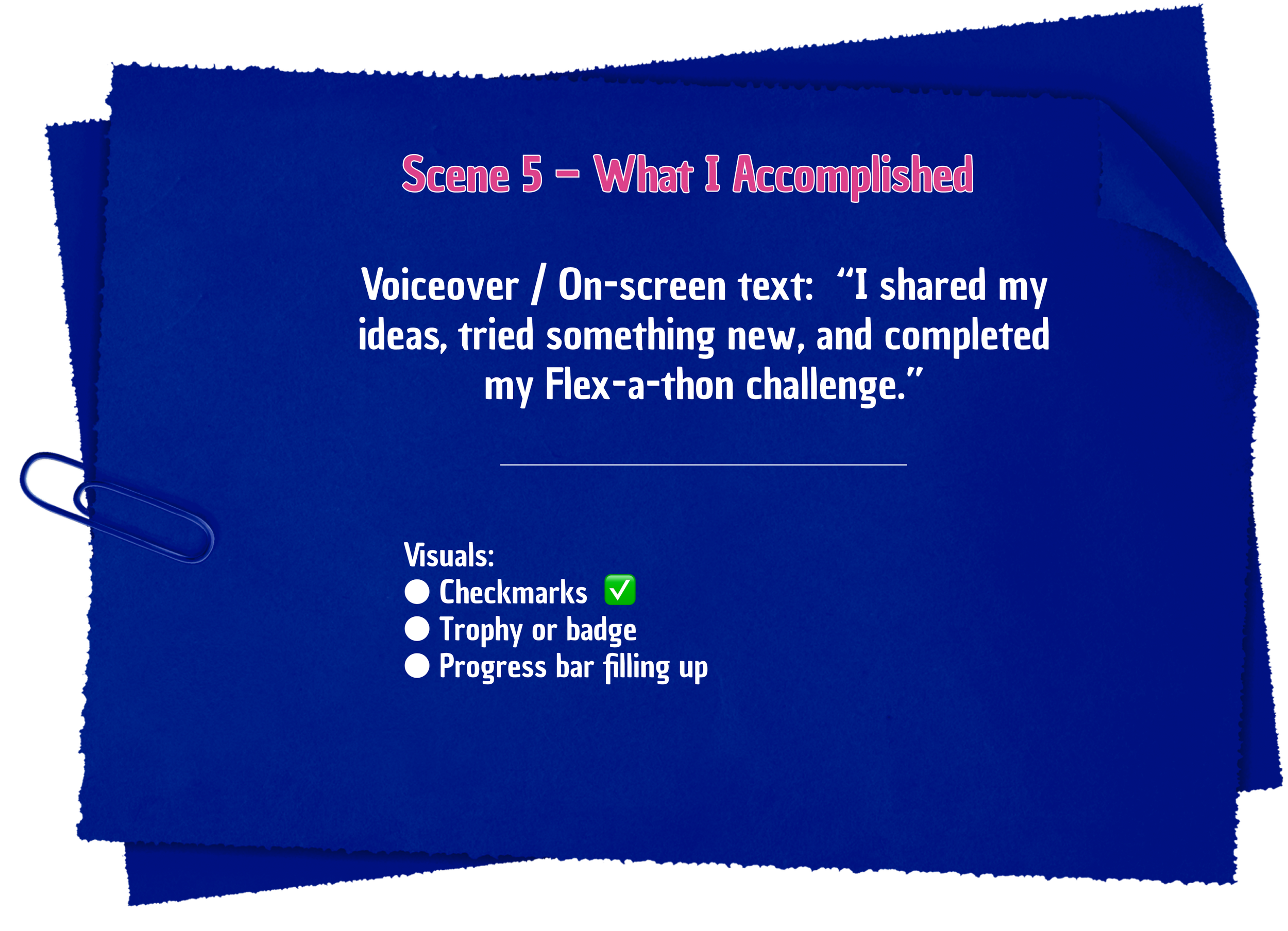
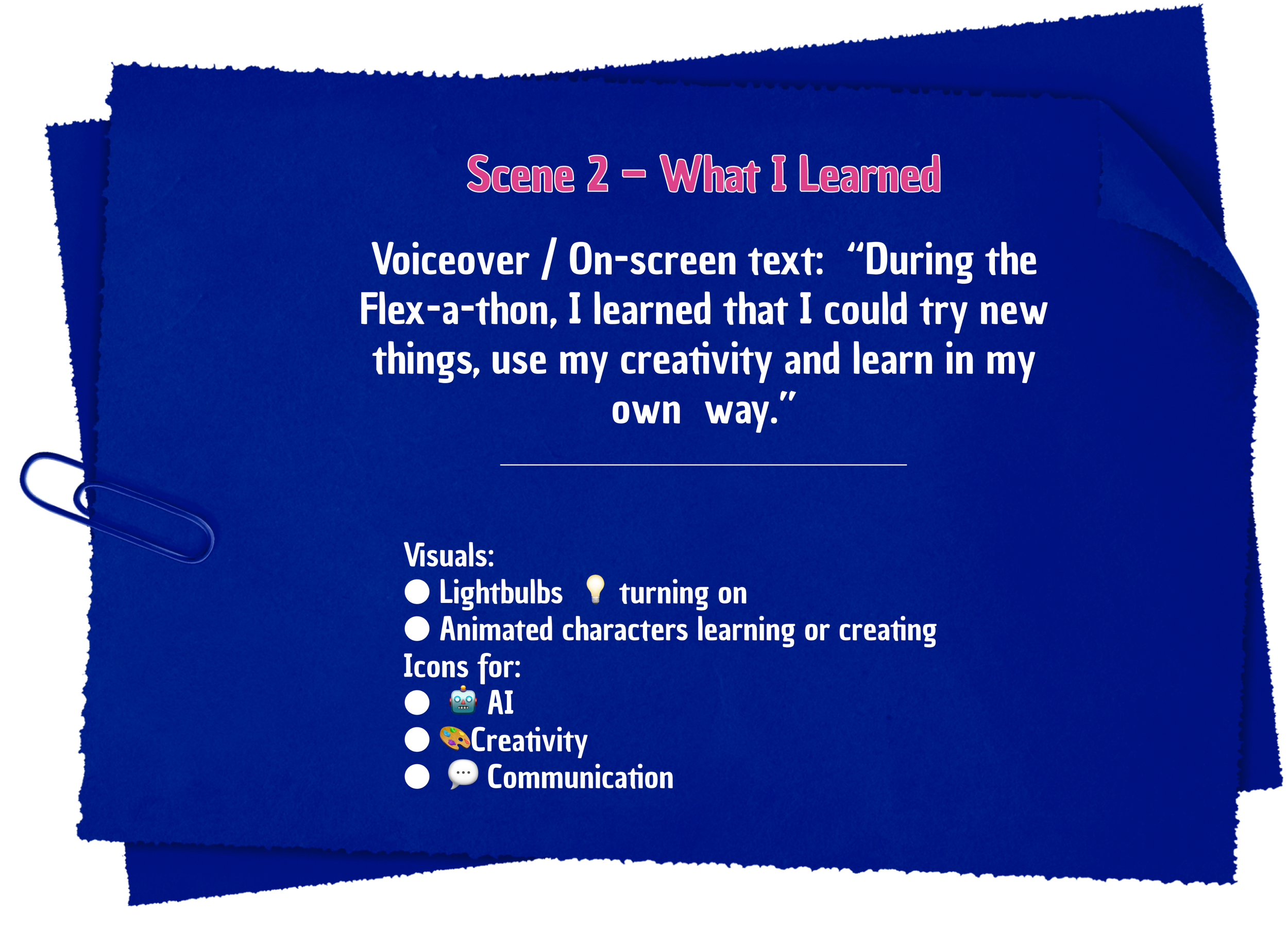
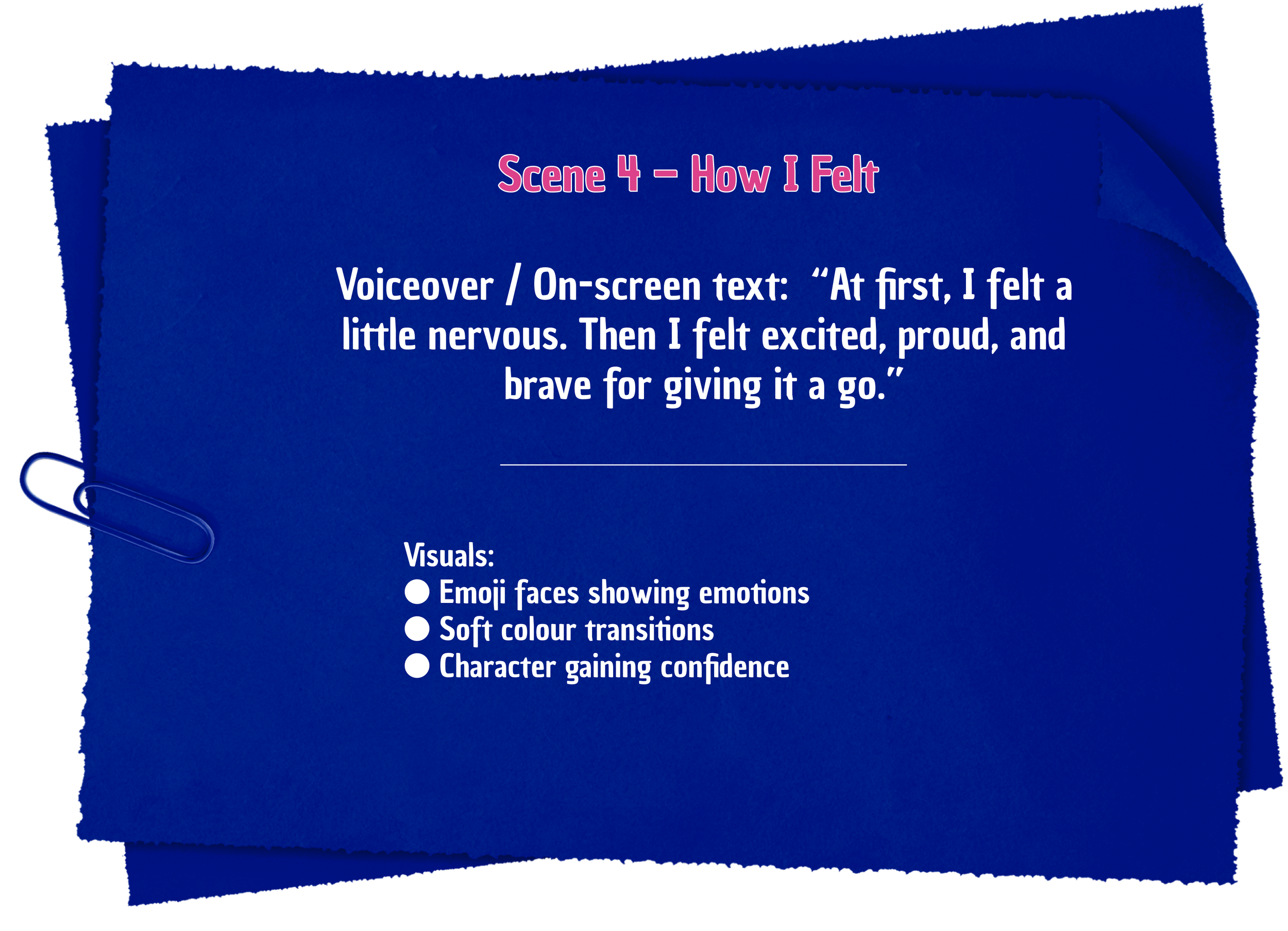
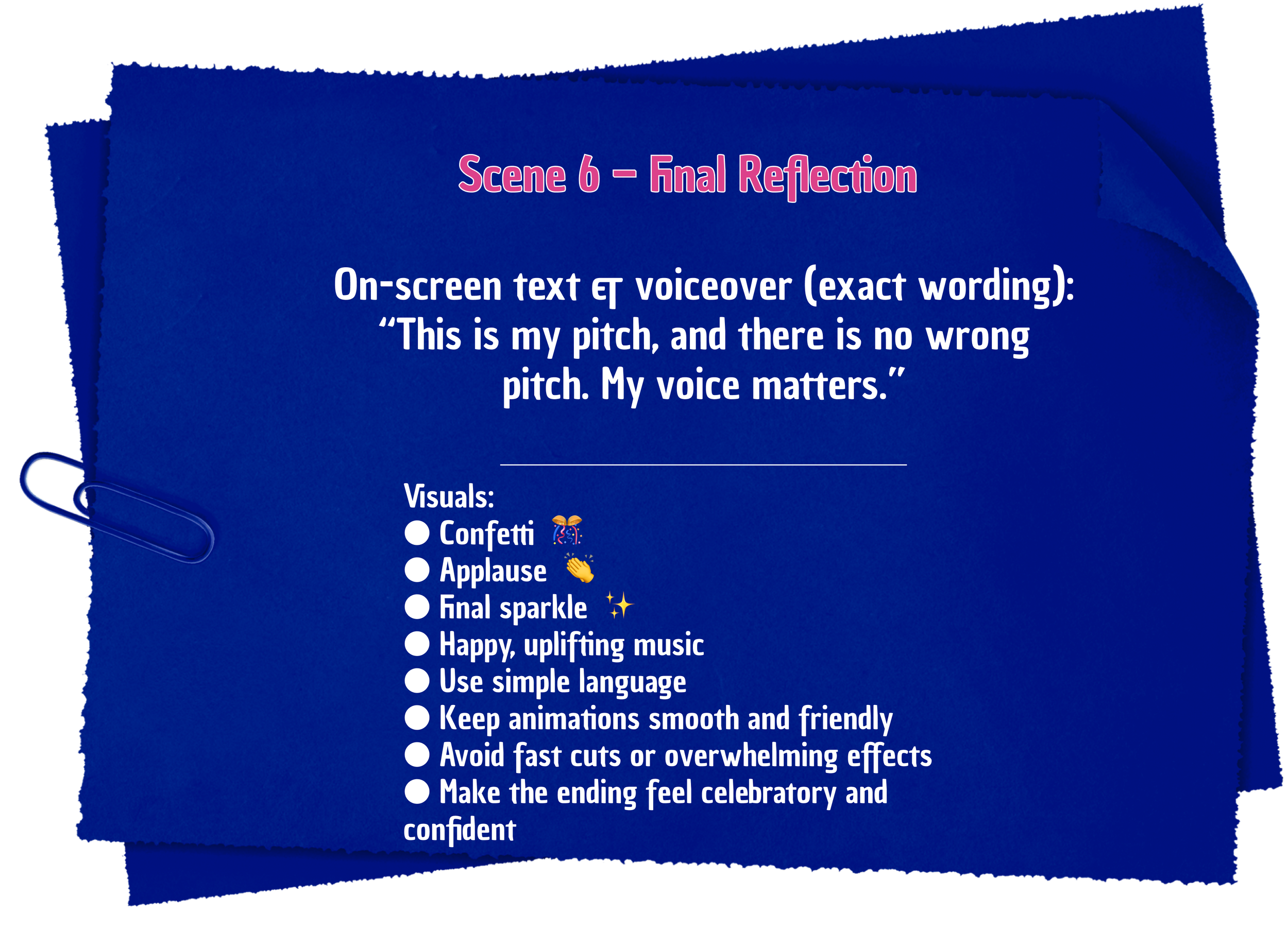
You get to rate what you have learned throughout the Flex-a-thon. Use AI to pitch what you thought you have learned, felt and accomplished. There is no wrong pitch
>>>>> Pitch Perfect Program Overview
What You’ll Explore:
Understand how to use AI-assisted storytelling, public speaking and visual communication. Turn your idea into a mini showcase!
Why You'll Love It:
You’ll design your own mini pitch and share your idea with confidence and sparkle.
Recommended Time:
Level 3: 45–60 mins
Why It Matters:
Pitch Perfect your idea. Your voice deserves to be heard.


Click in the lower corner to toggle full screen mode.
>>>>> Keeping Cyber Safe: Do’s and Don’ts
Flexers! just a quick reminder about our Dos and Don’ts to stay cyber safe. Let’s learn how to pitch in a safe way…
Dos and Don’ts:
✅ Be specific. AI works best with focused prompts. Example: Design a slide for a pet rescue app with 3 visuals. Why? Precision helps deliver useful slides.

✅ Think inclusively. Ask for diversity in images and language. Why? AI can reflect bias unless YOU request representation.
✅ Use your voice. Edit AI content to sound like you, not a robot. Why? Your story matters, not just the tech.
❌ Don’t use stereotypes. Why? Pitches should empower everyone. Don’t ask AI for ‘a scientist who looks smart’ instead describe more details such as what they do, actions - not just appearances.
❌ Don’t copy and paste blindly. Why? Always review content and make it your own.
❌ Don’t ignore visual overload. Why? Too many colours or animations can confuse your message.

More Tech Bias Awareness Tips:
✅ Check facts and tone. Why? AI can make errors or overhype. Balance is key!
❌ Don’t include personal/private info. Why? Keep it safe and creative. Never enter real names, schools, or contact details.


>>>>> Career Tips
Double click to Pop all 10 balloons to discover what careers use prompts:



FLEX 5 FINALE CHALLENGE – Use AI to present your Pitch Perfectly
You’ll design an AI pitch video reflecting on your Flex-a-thon journey using Microsoft Copilot Designer. What you learned, how you felt and what you’re proud of achieving.

Watch the video for instructions to help guide you through the Flex 5 Challenge


>>>>> Planning your pitch
Let’s go through the following steps to get you planning your pitch before you do the tech steps


Step 7:
Create your prompt and instructions
My Pitch Goal:
Create a short, fun, and inspiring pitch video about my Flex‑a‑thon experience, designed for 10 14‑year‑old girls, showing confidence, creativity, and personal growth.
Context
This is a personal reflection video. It should feel positive, safe, and empowering, reminding young girls that learning is different for everyone and that there is no “wrong” way to share ideas.
Audience & Tone
Audience: Girls aged 10–14
Tone: Friendly, upbeat, encouraging, confident
Style: Colourful, animated, playful, easy to understand
Video Length
1-2 Minutes

>>>>> Let’s now create your Pitch using Copilot Designer
The Final Pitch Perfect
STEP 1: CREATE VIDEO
Open Copilot by clicking on this link M365 Copilot

2. Click Create
Click on Create a video
Copy your Prompt instructions into the chat window that you created in Step 7
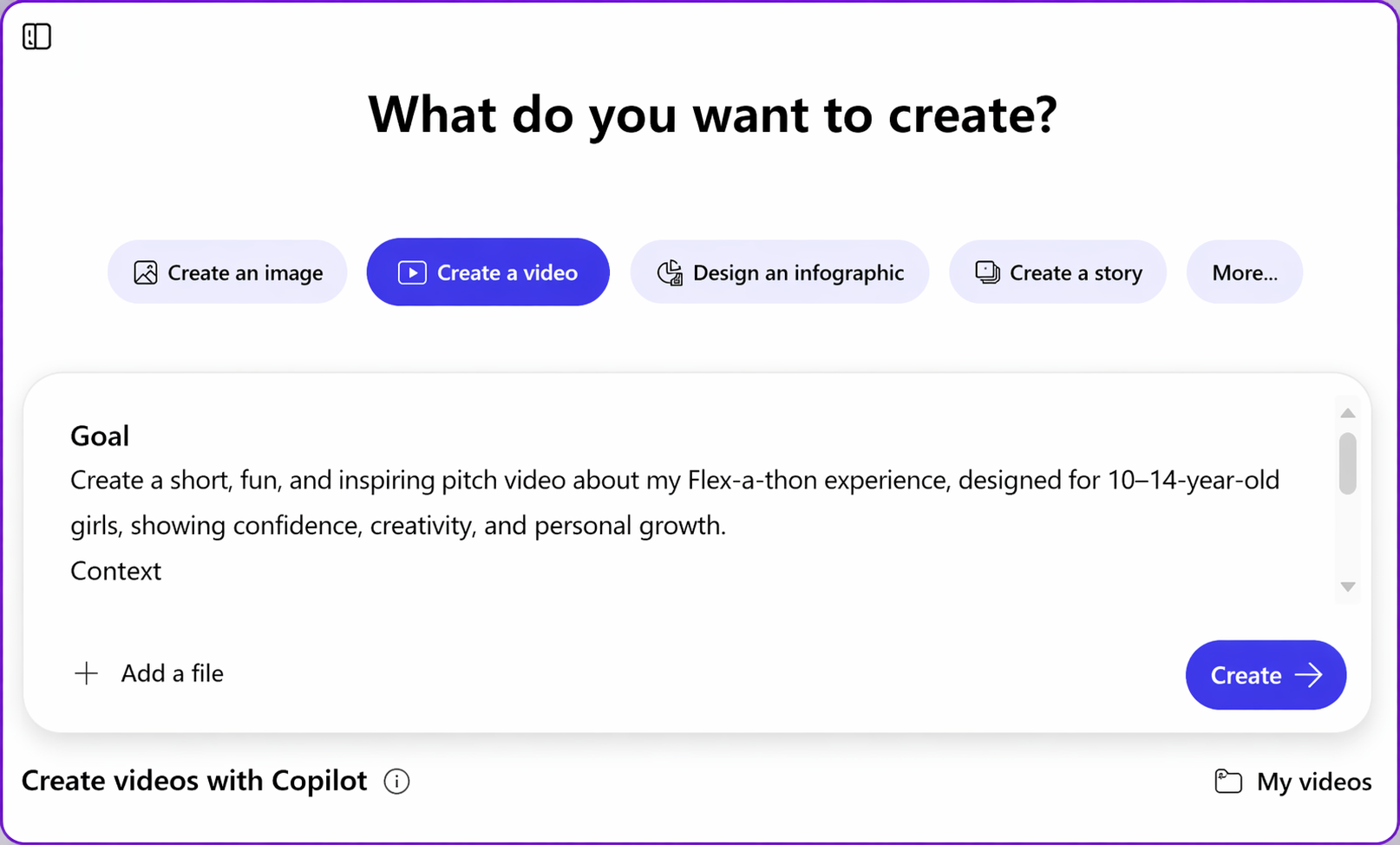
STEP 2: CREATE YOUR VIDEO
Click on the create button to generate your video
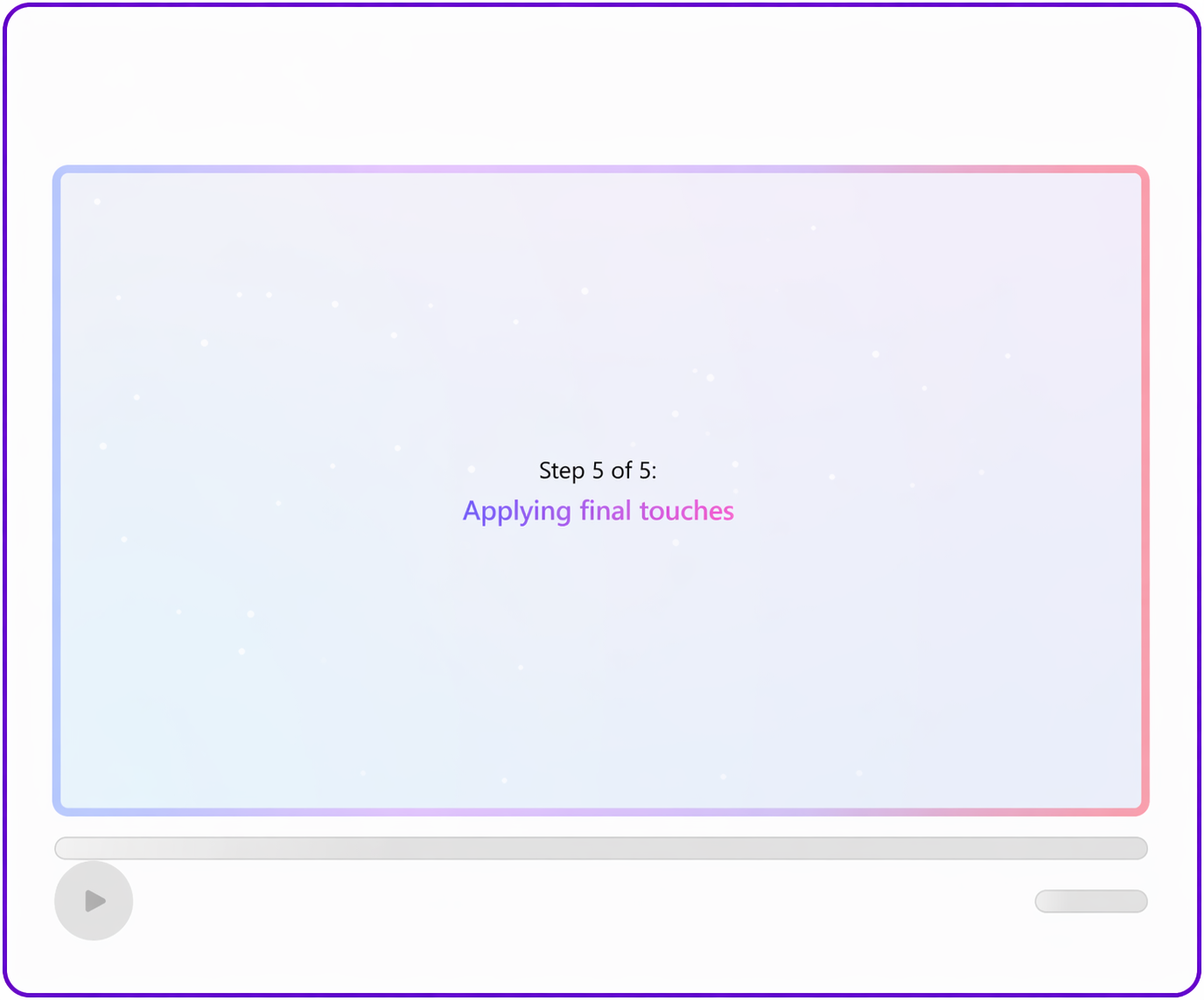
Wait watch as AI turns your words into an pitch video
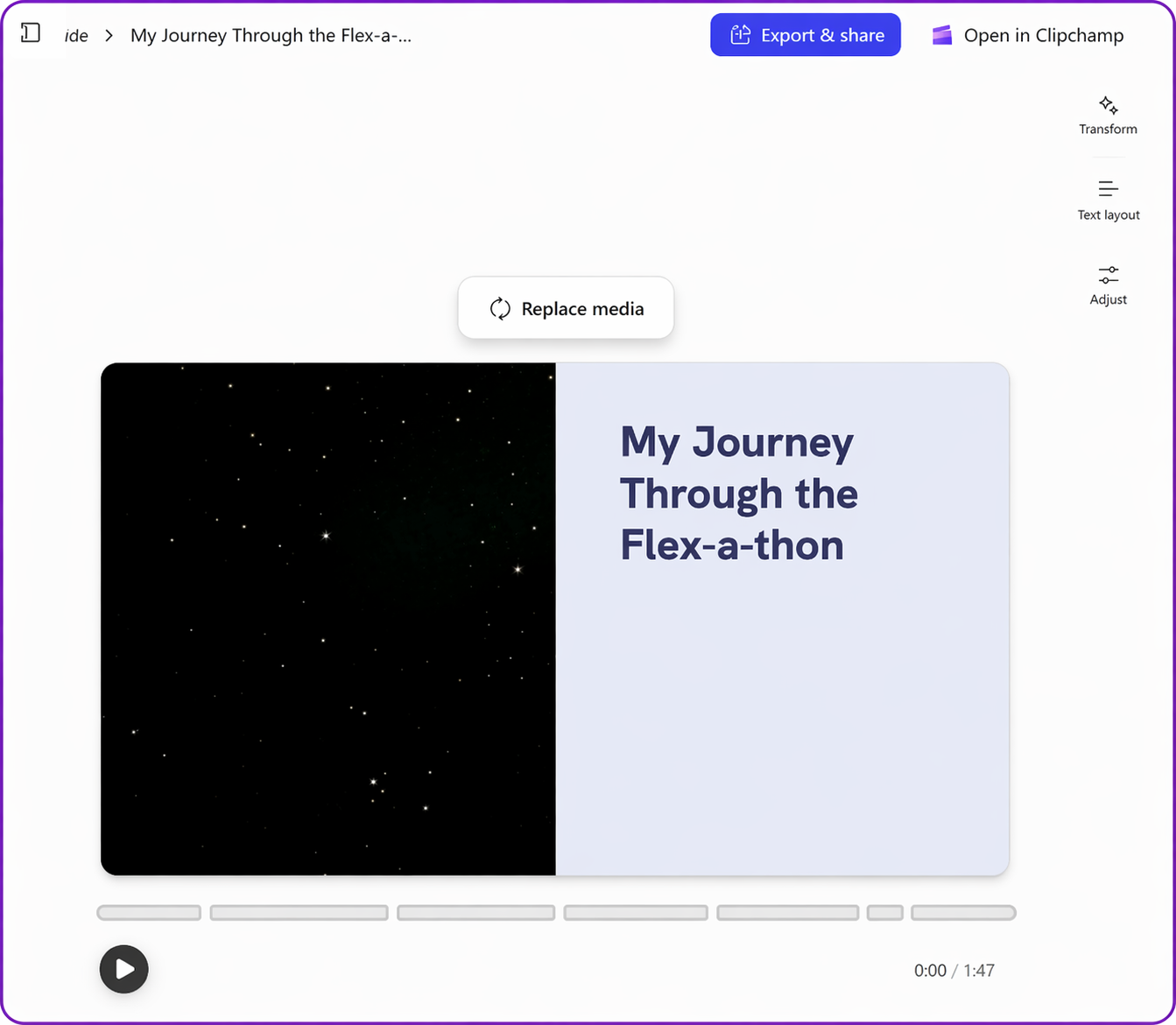
STEP 3: PREVIEW YOUR VIDEO
Click Play
Watch the whole Video
Ask Yourself:
Does this Video feel like me?
Is there anything I would like to change?
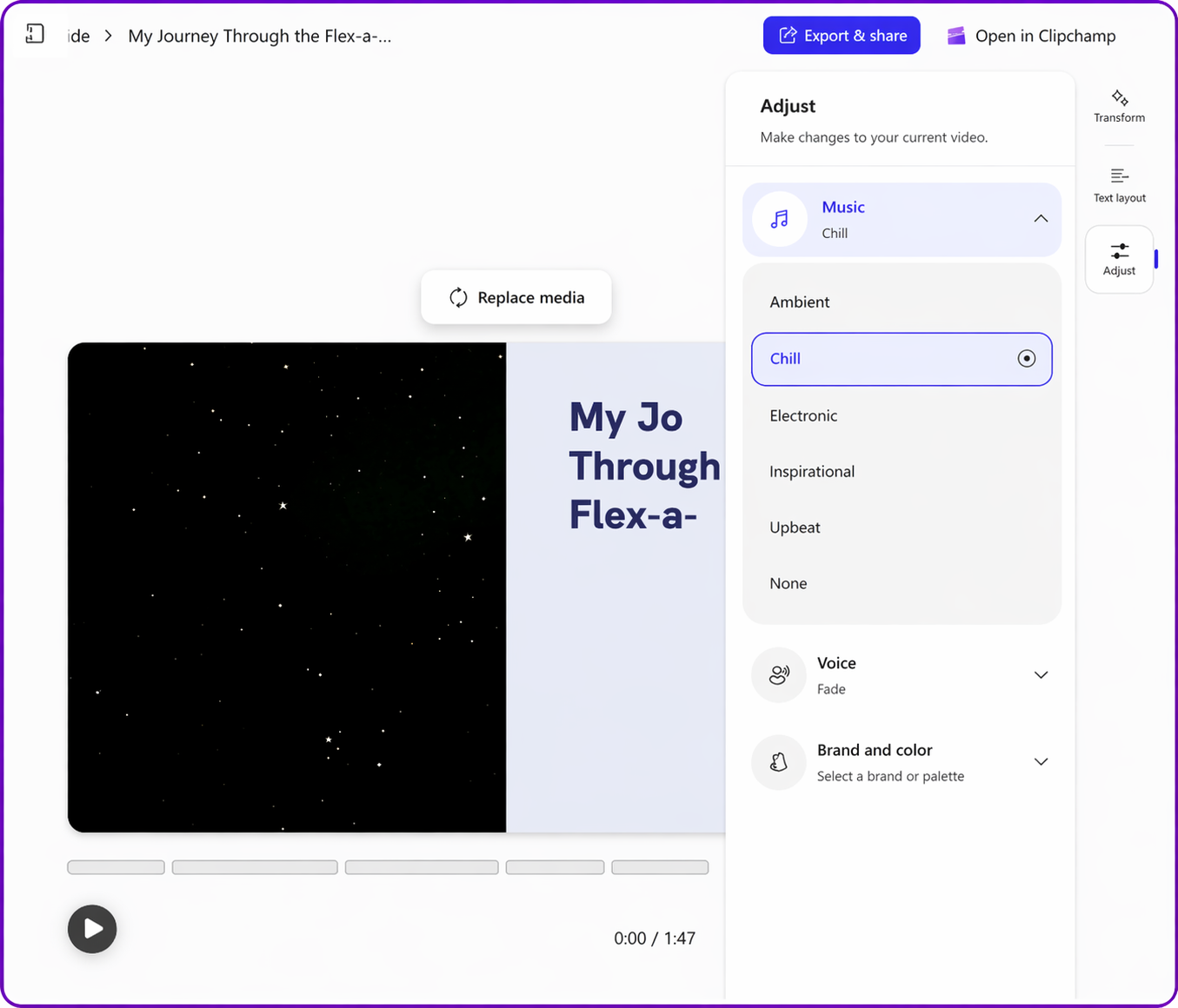
STEP 4: MAKE ADJUSTMENT
Click Adjust
Update the Music
Update the voice
Update the Brand and Colour
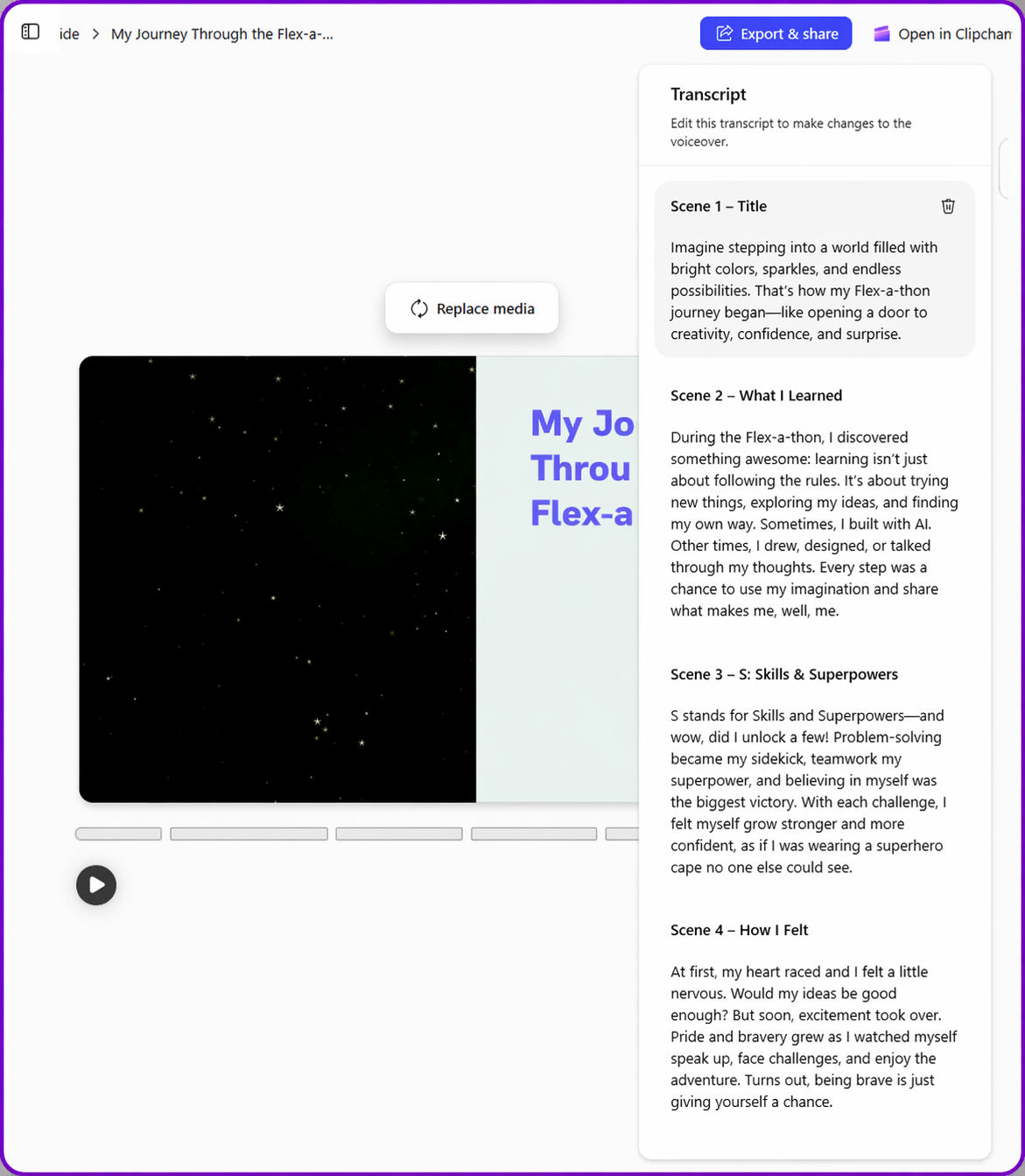
STEP 5: UPDATE THE SCRIPT
Click Transcript
Click into each scene and decide if you would like to change anything
Click update if you change anything in the transcript otherwise not required

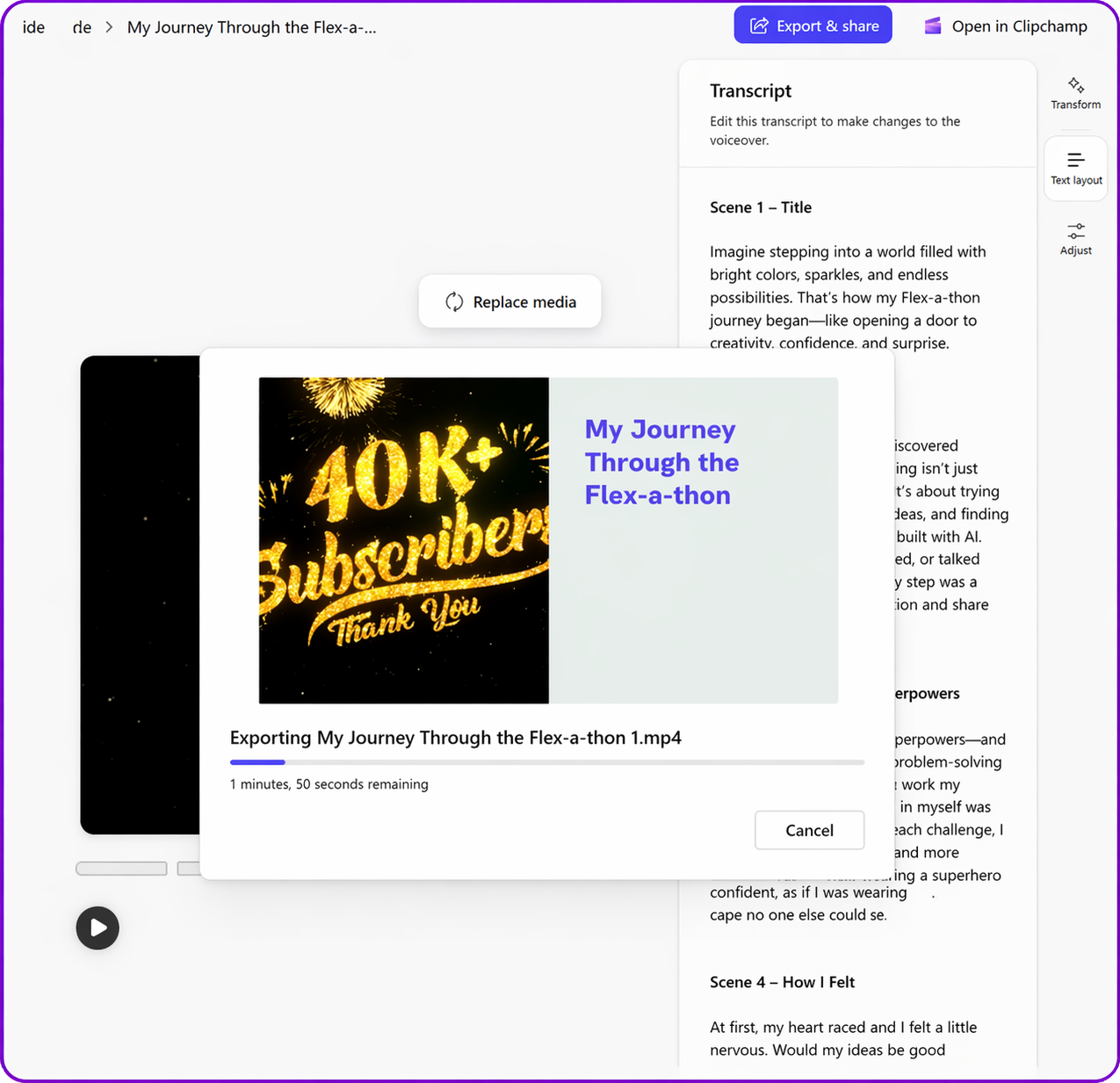
STEP 6: EXPORT AND SHARE
Click on the Export and Share
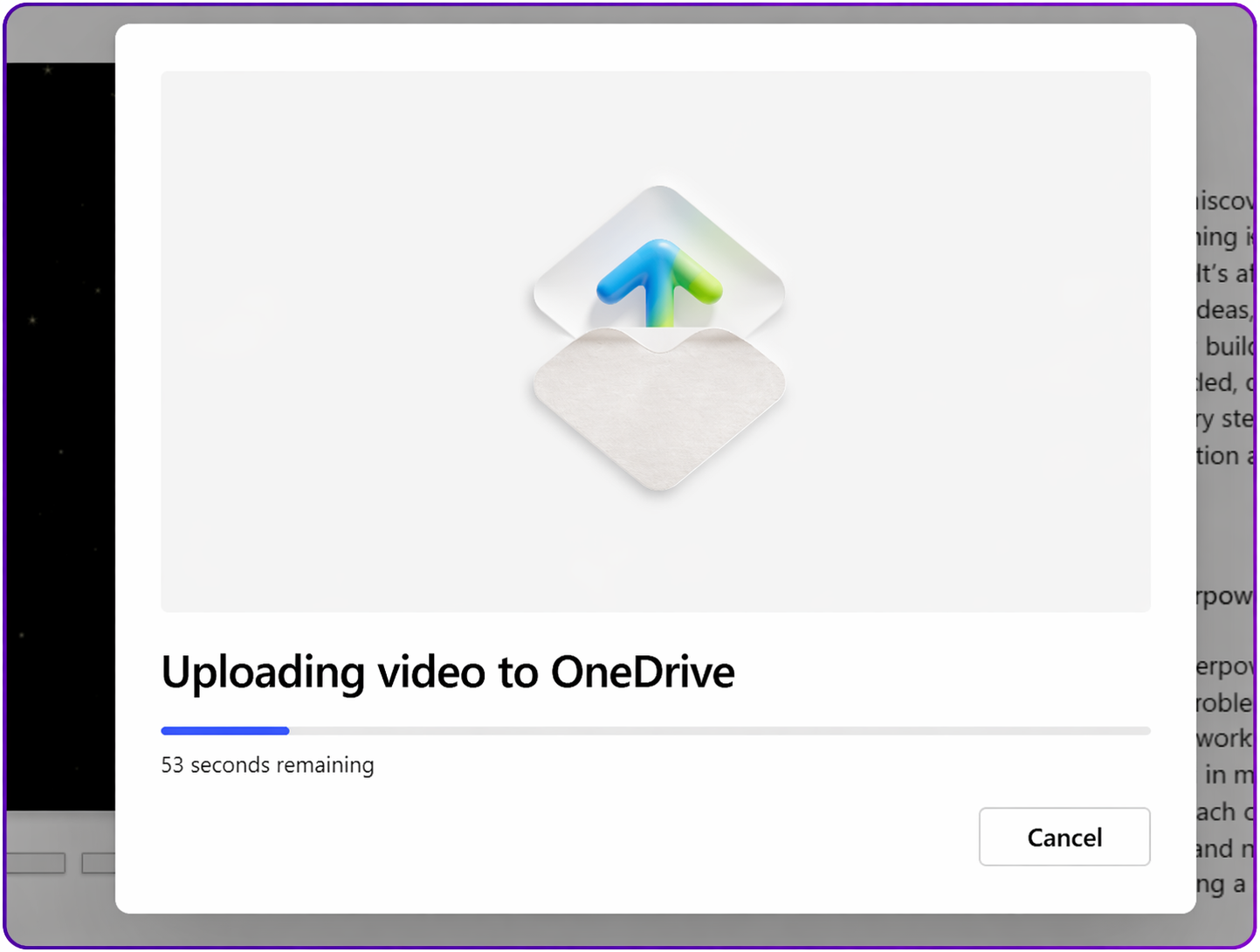
Wait for your video to be created
Review your updated video
Copy the link to submit

Open your email create a new email and paste the link
Update the subject to Flex 5 Pitch Perfect and to send to GDOS for your Flex 5 Submission 🏆🥳

>>>>BONUS revision Tick the boxes if your prompt:
Created the image you wanted
Followed your limits
Felt safe and helpful


And always remember if something didn’t work the first time, you can Always edit your instructions and try again
>>>>> Enter to win a STEM prize!
With permission from a parent or guardian, take a photo of your Pitch Perfect Flex #5 and send it to
hello@gdostem.com.au for your final chance to win an awesome STEM prize!
⚠️Remember: Always ask parent permission before sharing or entering.
💫FLEXERS!
Now, after completing all 5 Flexes …drum roll…
you’re now eligible for the Grand Prize Draw 💗
a brand now PINK APPLE iPad
CONGRATULATIONS!!! 🎉
What an amazing effort 💪💪💪
*Please note that the iPad does not come with an included plan, pre-paid plan or sim card*