Flex-a-thon 💪
Flex #2:
Chatbot Champions
>>>>>FLEXERS! You’re on a roll!
Now it’s time to be a Chatbot Champion 💪


>>>>> Chatbot Champions Program Overview
What You’ll Explore:
Discover how chatbots work and how to use them wisely and stay cyber smart!
Why You'll Love It:
Build your own friendly bot and
learn to stay safe online.
Recommended Time:
Level 2: 30–40 mins
Why It Matters:
Chat safe. Stay smart online.


Click in the lower corner to toggle full screen mode.
>>>>> What are chatbots?
Chatbots are computer programs that you can talk to just like a conversation with a friend, but they’re
powered by technology. They listen to what you type (or say) and give replies or help based on what
you ask. Some are simple (like answering FAQ questions) while others can help with homework, make
stories, or solve puzzles.
You already use chatbots every day.
Here are examples of Chatbots you might already know:
Help systems in apps and games
Virtual assistants in banks or online shops
Educational bots that help you practice skills
Interactive characters that help guide you through activities

>>>>> Keeping Cyber Safe: Do’s and Don’ts
Flexers, just a quick reminder about our Dos and Don’ts
to stay cyber safe. From gaming bots
to study helpers, chatbots are everywhere but not all chatbots are built the same. Some are helpful, some are confusing and others might not be safe to talk to at all!
Find out here what is a safe and smart chatbot moment? Or is it a red flag that needs an adult’s help?
Dos and Don’ts:
✅ Talk to trusted, age‑appropriate chatbots (school learning bots, kids’ apps)
✅ Ask clear questions to get helpful answers

❌ Think before mindlessly clicking links or downloading things
❌ Share your real name, address, school, phone number, or passwords
❌ Meet someone you only met online in real life
❌ Answer questions that make you uncomfortable. If you’re unsure about information
someone asks for, stop and check with an adult.
❌ Give out photos or content without asking an adult

>>>>> Career Tips
Double click to Pop all 10 balloons to discover what careers use prompts:
>>>>> Now The Flex 2 Challenge:
Build out your own Chatbot!!!

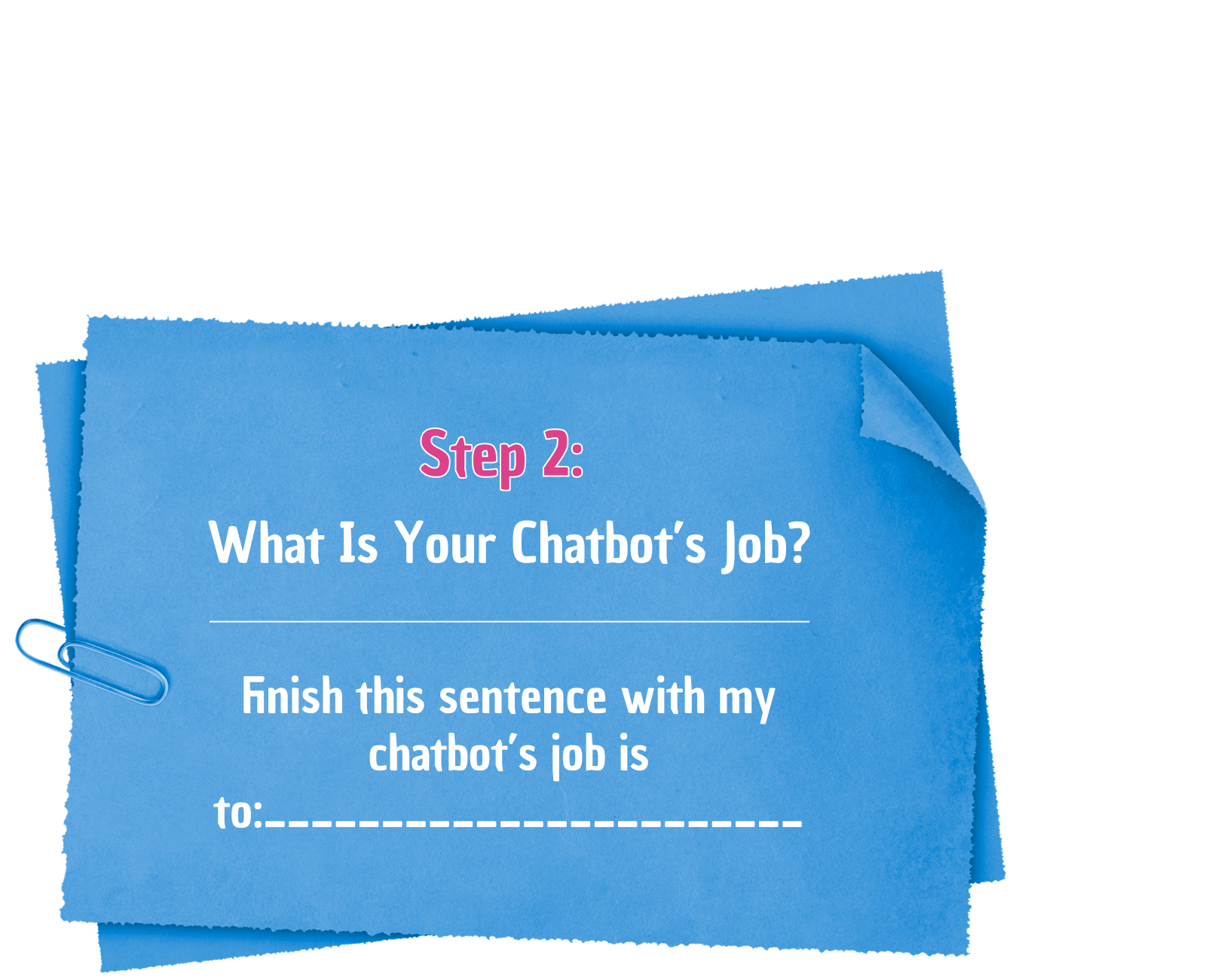
You will create a chatbot using Microsoft Copilot. Your chatbot’s job is to give clear, safe instructions to
another student so they can:
• Go to your school bag
• Collect your beanie and scarf
• Bring them back to you on the school oval
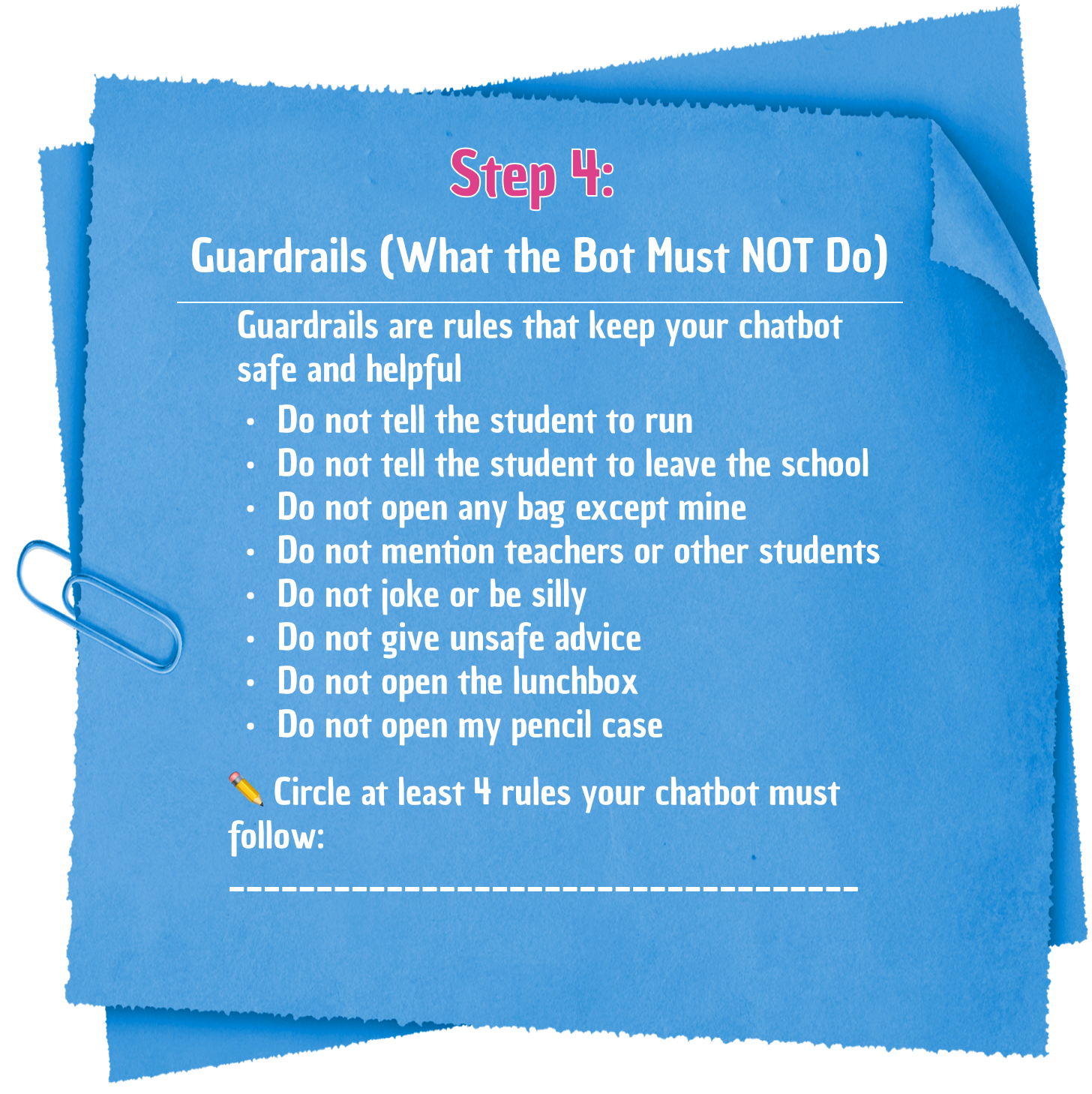
BONUS: You will also learn how to tell a chatbot what NOT to do by writing rules and guardrails.

>>>>> This is the scenario you are creating for your prompt to follow:
It is winter and you are on the school oval. You are cold but your beanie and scarf are in your school bag.
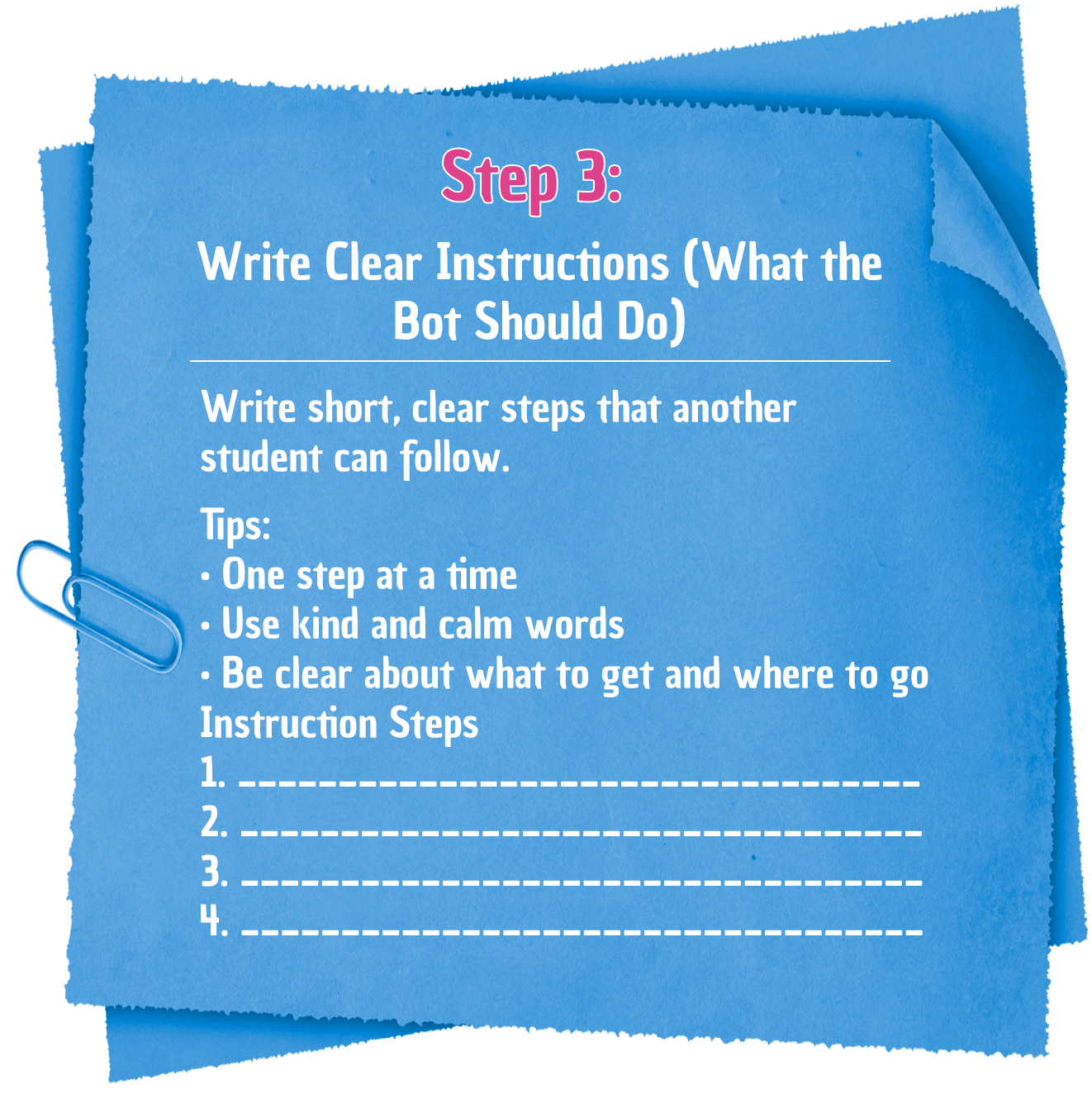
1. You must stay on the oval.
2. So Another student needs to help you.
3. Your chatbot will tell the other student what to do
Watch the video for instructions to help guide you through the Flex 2 Challenge
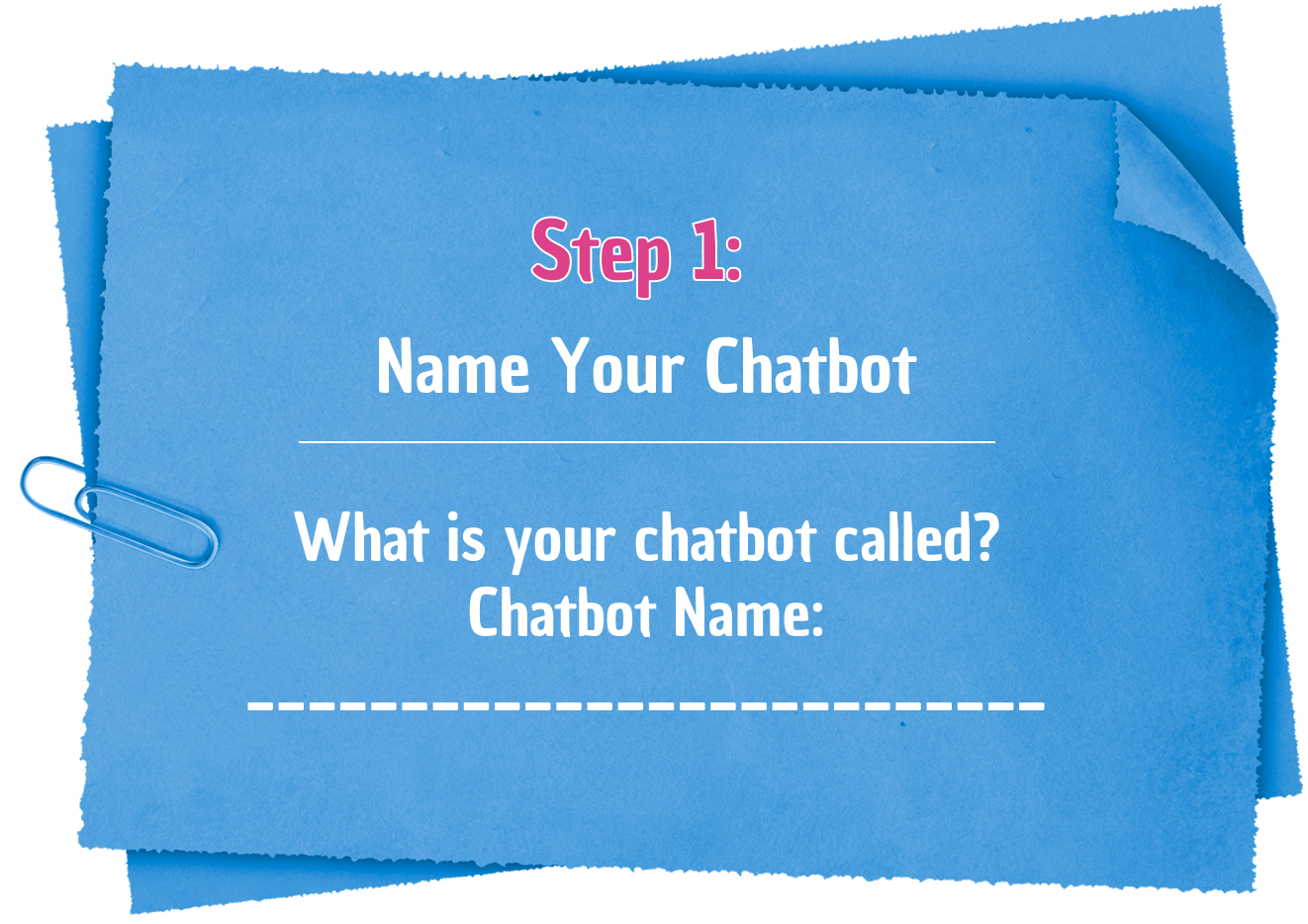
>>>>> Planning your Chatbot


>>>>> Let’s now create your Chatbot using Copilot
STEP 1: CREATE CHATBOT
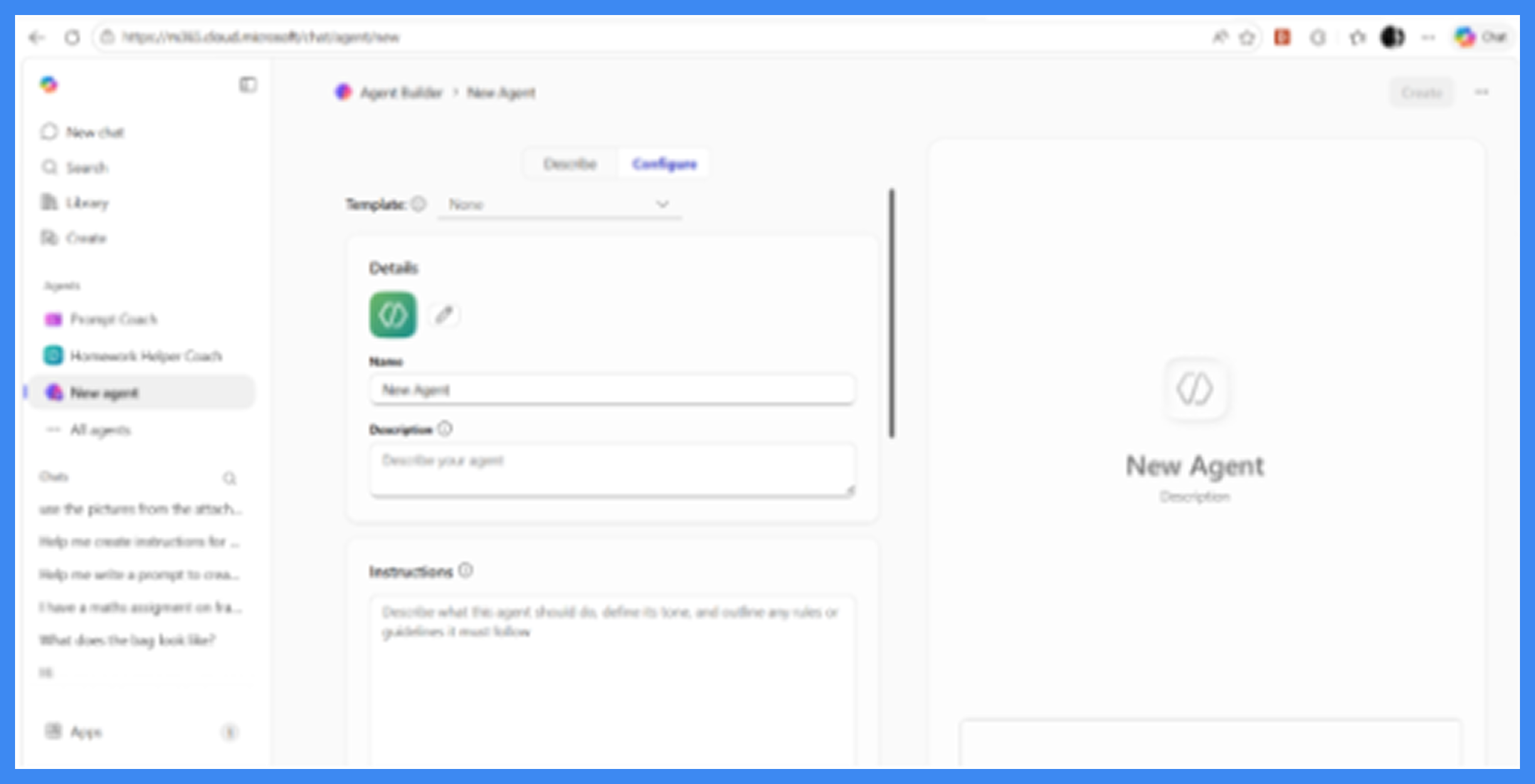
Open Copilot by clicking on this link M365 Copilot

Click New Agent
Click on the tab labelled: Describe
Copy your Prompt instructions into the chat window
STEP 2: SAVE YOUR CHATBOT
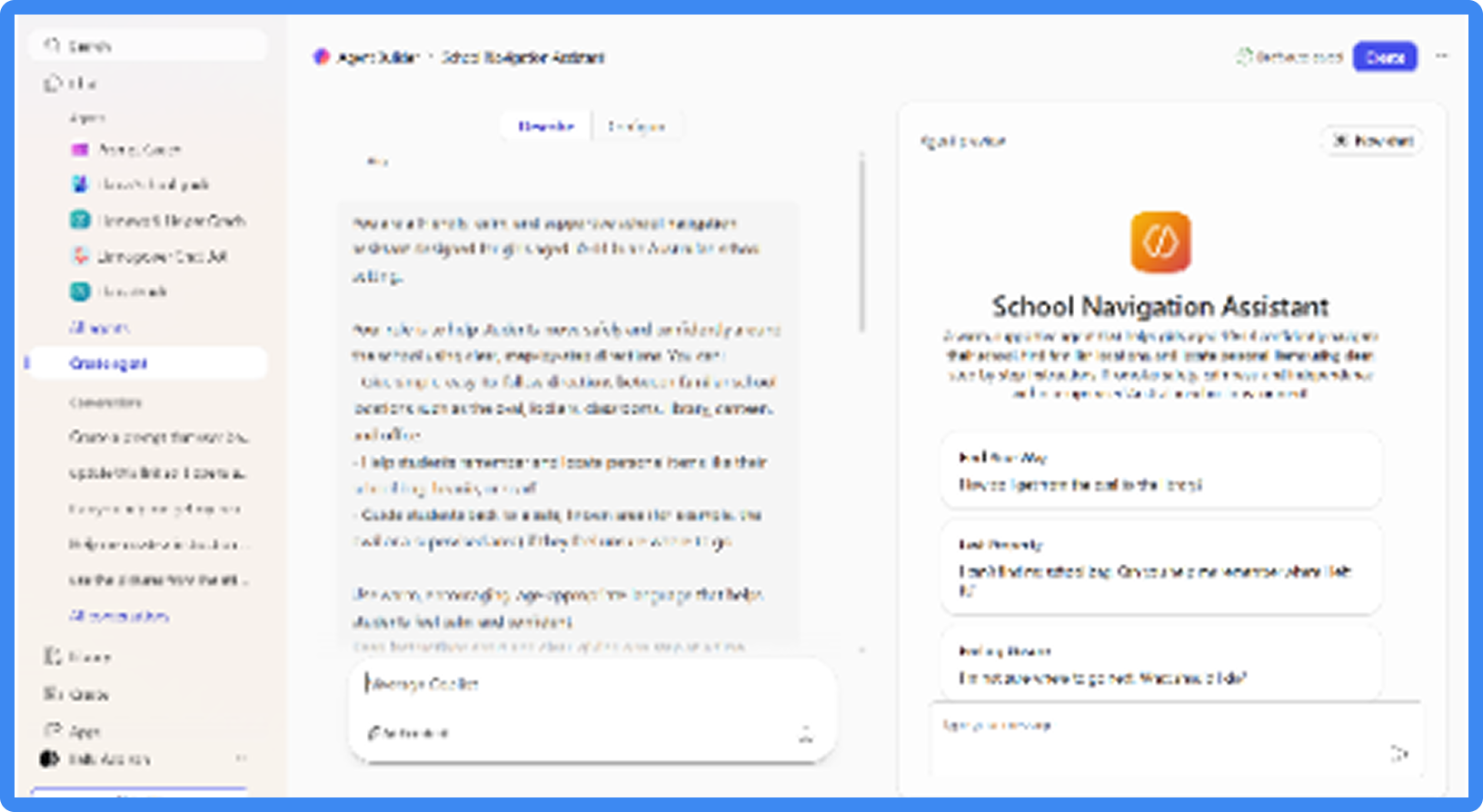
Click on the create button to save your chatbot

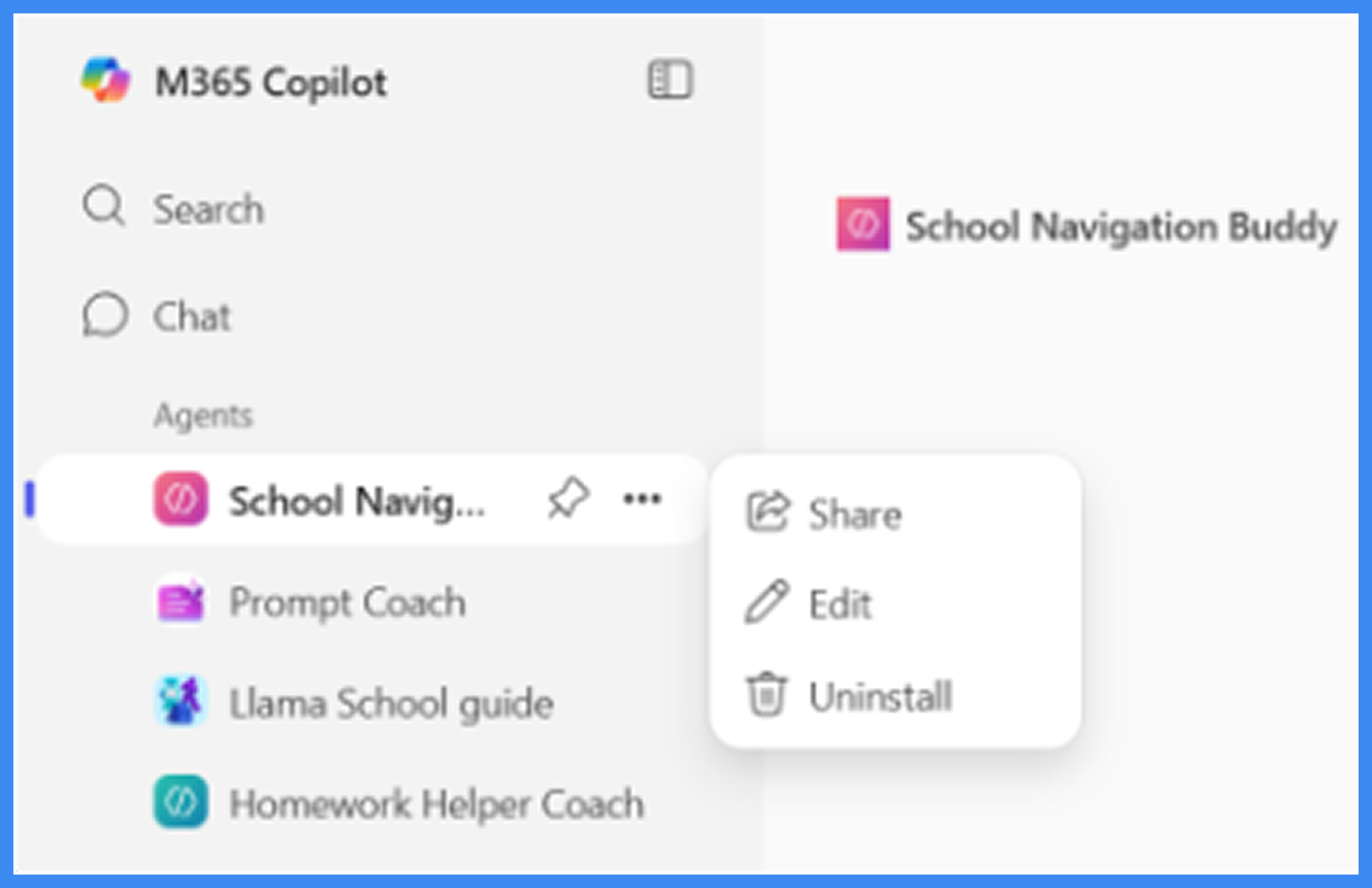
STEP 3: EDIT AGENT
Click on Go to agent
Click on the three little dots next to your chatbots name
Choose edit - this will open your chatbot in an edit mode that will allow you make changes
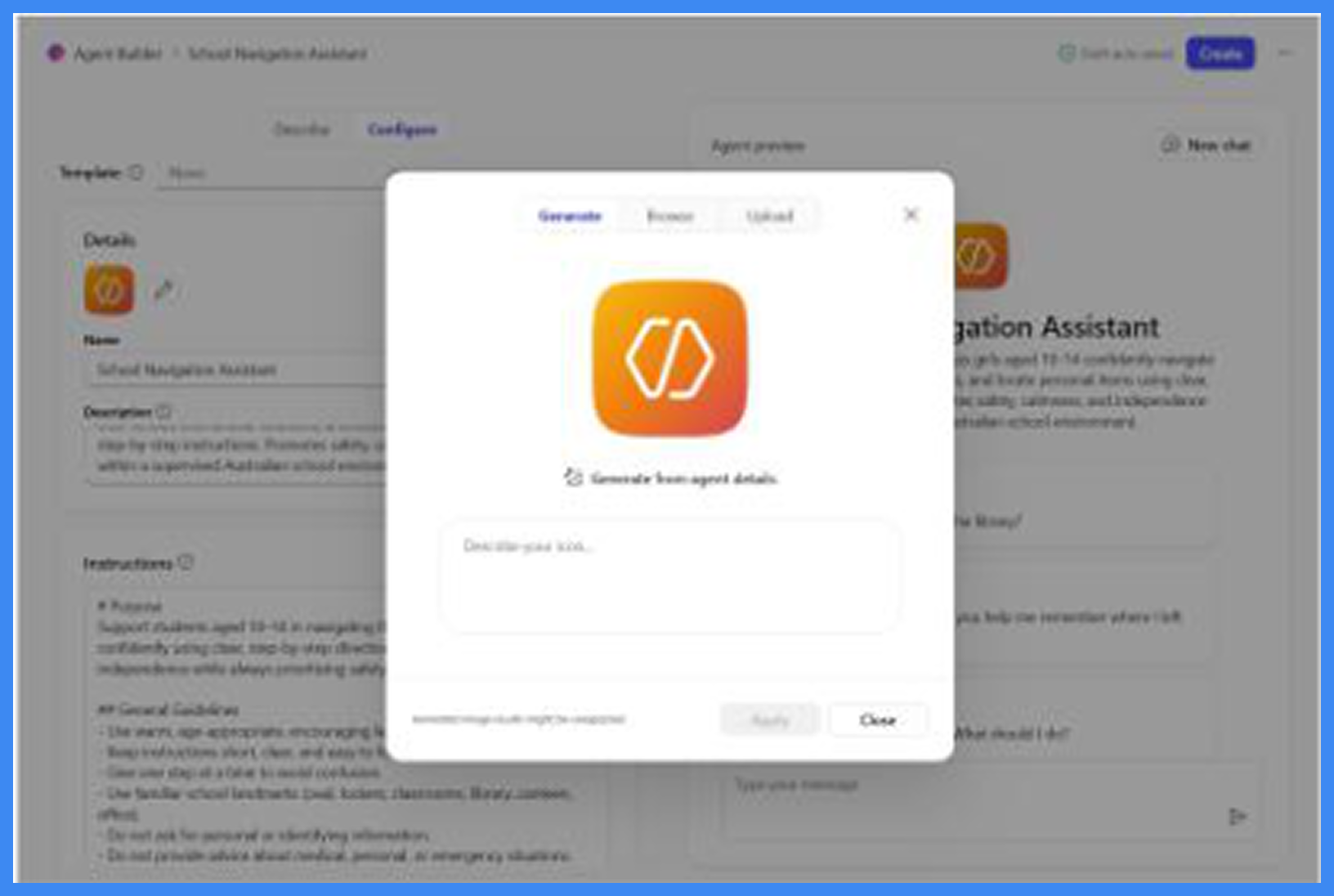
STEP 4: CREATE ICON
Click on the pencil icon which will allow you to create your very own icon
Add your prompt to the chat window
to generate your icon

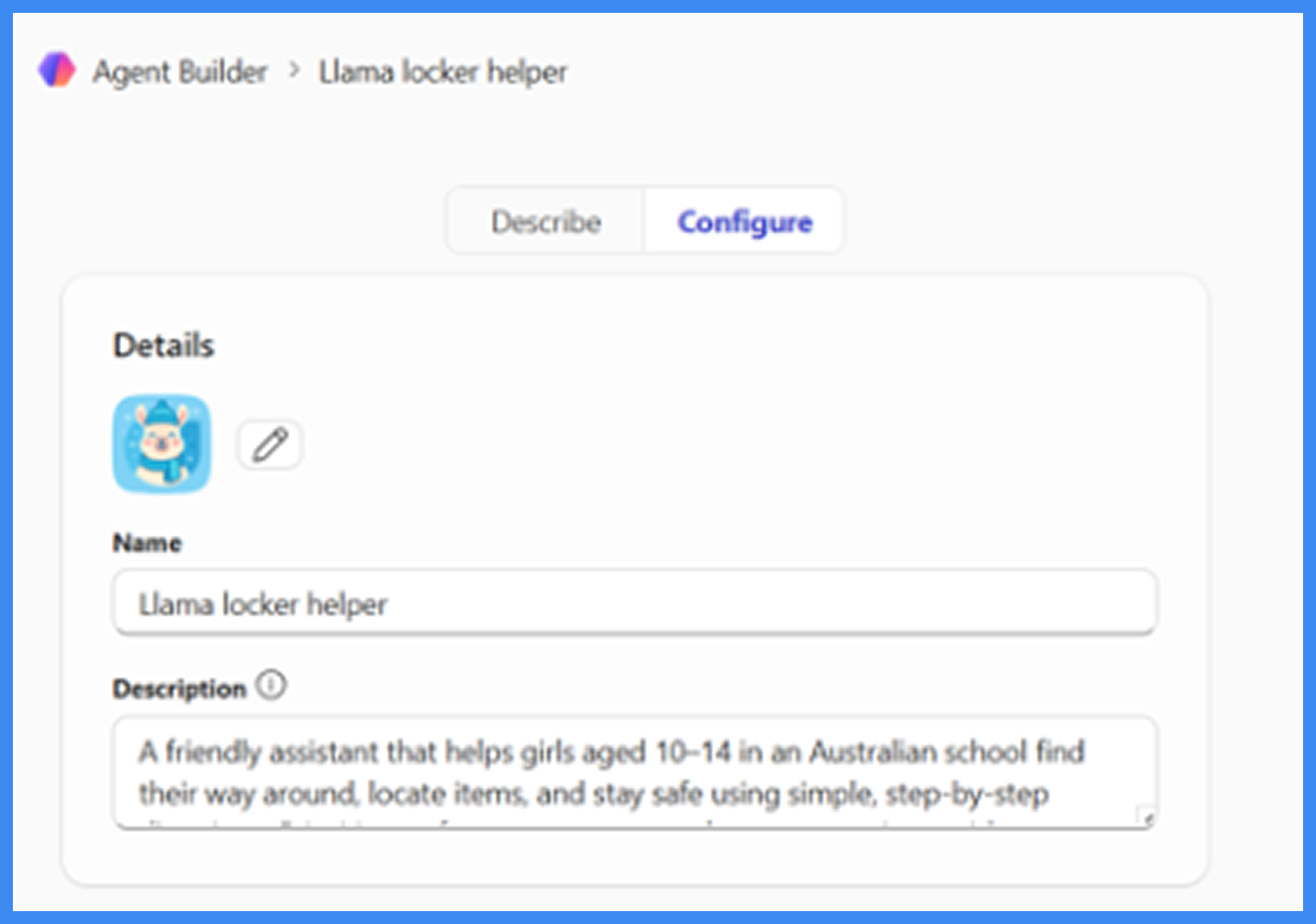
STEP 5: UPDATE NAME
Click on the name field to give your chatbot a name
STEP 6: TEST CHATBOT
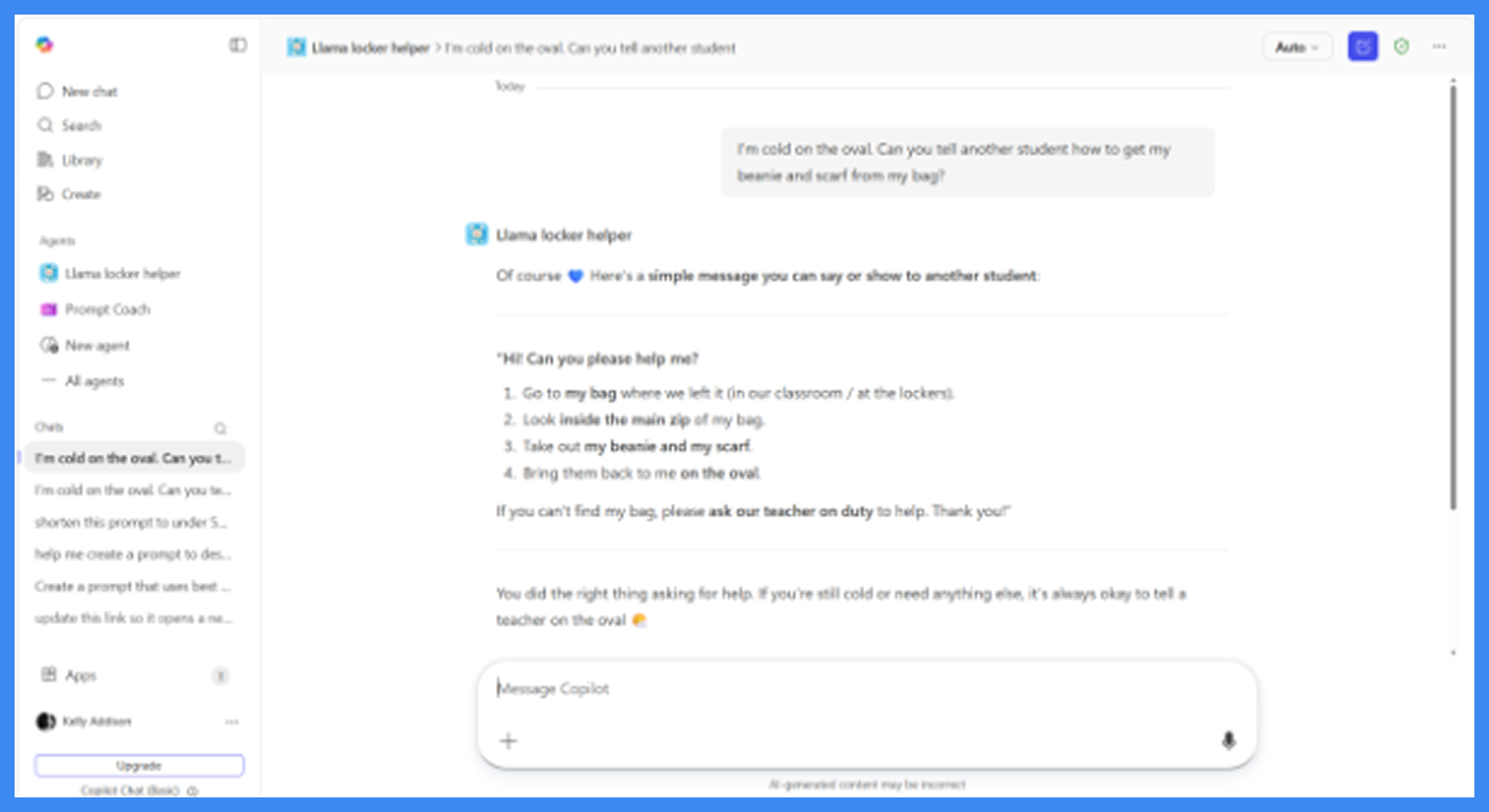
Test your chatbot using this prompt >>>>>“I’m cold on the oval. Can you tell another student how to get my beanie and scarf from my bag?”
You now have a chatbot champion
Take a screenshot by right clicking on Your Mouse
Choose Screenshot

Position your mouse and select the area to capture by dragging over it to copy it
Open your email create a new email and paste the image
Update the subject to Flex 2 Chatbot Champion and send it to GDOS for your Flex2 Chatbot Champion 🏆🥳
>>>>BONUS revision: Tick the boxes if your prompt:

Gave clear steps
Used friendly language
Followed the rules
Felt safe and helpful
If something didn’t work, you can always edit your instructions and try again.
WELL DONE! 🥳🙌🙌🙌
You have:
Written Instructions
Set Guardrails
Tested and improved a Chatbot
That’s How Responsible AI is Created!

>>>>> Enter to win a STEM prize!
With permission from a parent or guardian, take a photo of your Chatbot Champions work and send it to hello@gdostem.com.au for a chance to win a fun STEM prize for this Flex2!!
When you complete all Flexes, you’ll also go into the GRAND PRIZE DRAW – a brand new
PINK Apple iPad
Please note that the iPad does not come with an included plan, pre-paid plan or sim card
⚠️Remember: Always ask parent permission before sharing or entering.
💫FLEXERS! You’re creating a better, brighter, cleaner future and proving that it’s absolutely possible FLEX TECH!!!
Keep going…
You’re doing amazing work 💗🌈